Project costs
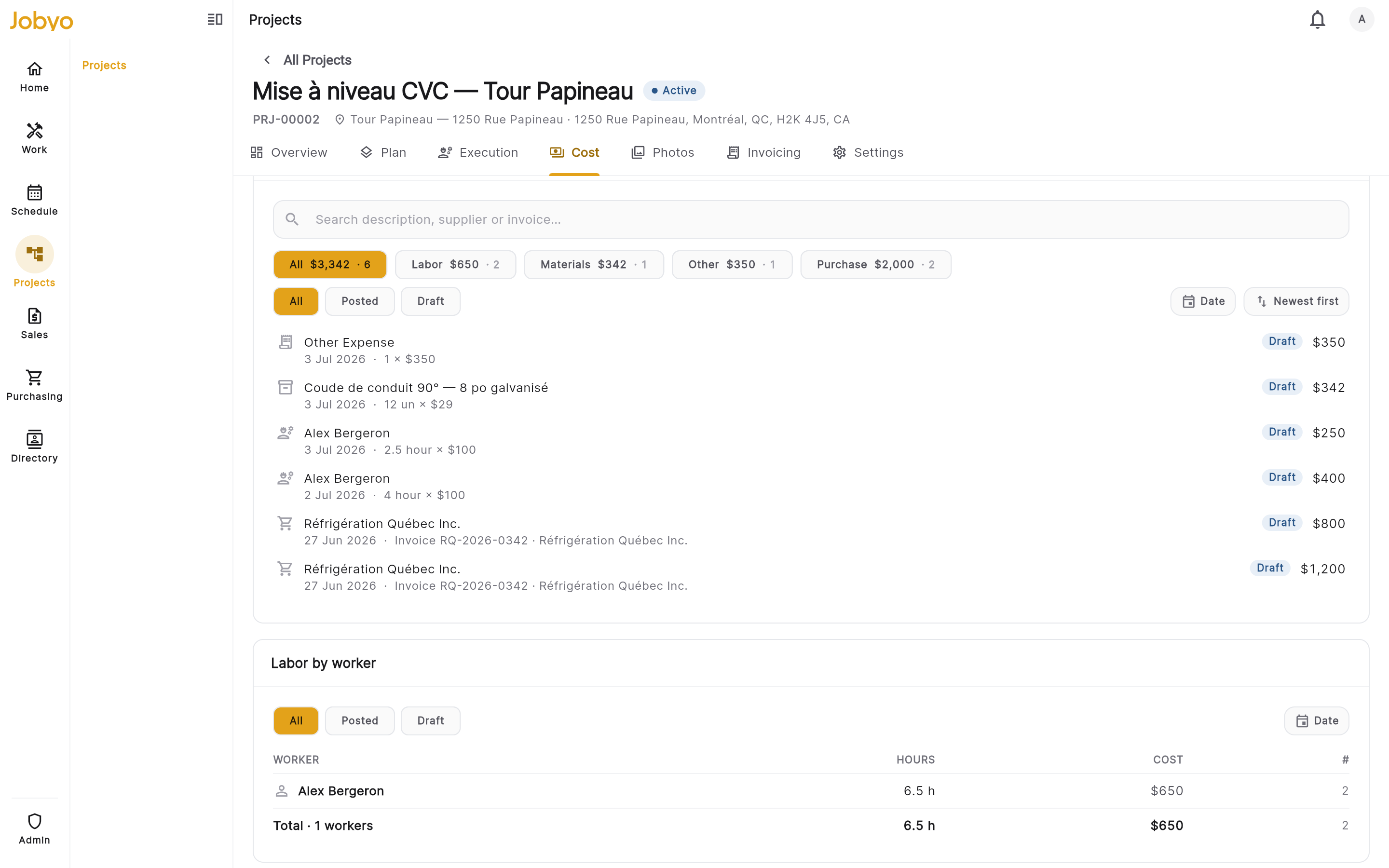
The project Cost tab is where you see what a project has actually cost — labour, materials, purchases, and expenses — and how that compares to the plan. It's a read-only picture built from the work recorded elsewhere in Jobyo, split into spend roll-ups, a planned-vs-actual variance table, and material tracking views.
What the Cost tab shows
Open a project and select the Cost tab. It pulls together several read-only views:
- Spend summary — total actual cost, split into posted (finalised) and draft (not yet finalised).
- Cost composition — actual cost by class: direct (job cost), overhead (allocated indirect cost), and adjustment (corrections).
- Cost by category — actual spend per cost category.
- Cost by work order — every work order under the project, with its cost, sorted by amount.
- Cost lens — the same cost pivoted by worksite, location, or equipment.
- Planned vs actual — actual direct cost against the plan, with a published baseline or the live plan (see below).
You don't enter cost on the Cost tab. Jobyo builds every figure from the time, materials, purchases, and expenses logged against the project's work orders and tasks. A brand-new project with nothing logged yet reads zero — that's the honest empty state, not an error. Figures fill in as work is recorded.
Where the money comes from
Each cost figure traces back to activity captured elsewhere:
| Cost source | Recorded in |
|---|---|
| Labour and transport | Time & attendance on work orders |
| Materials and inventory | Item consumption, goods receipts |
| Supplier purchases | Purchase invoices |
| Miscellaneous expenses | Add expense on the project or a work order |
Labour and transport are priced from labour cost profiles (set up under Company Settings), which hold the hourly, daily, per-km, or flat rates the cost engine applies when time is logged.
Planned vs actual
The variance table compares the actual direct job cost against a planned-cost figure. If a baseline has been published, it compares against the cost frozen in the baseline version you pick. If no baseline exists yet, it compares against the live plan instead — so you get a variance reading from day one, not just after someone publishes a baseline.
Without a published baseline, the table shows a note that it's comparing against the current plan rather than a frozen reference. Publish a baseline from the project's Plan tab once scope and schedule are agreed, to freeze a fixed point to measure against going forward.
Open the Cost tab
From the project workspace, select Cost and scroll to the Planned vs actual section.
Variance section — baseline picker, rows for project total, Unallocated, phases, and tasks Pick a baseline version, if one exists
If at least one baseline has been published, use the baseline-version selector to choose which one to measure against. If none has been published, the table compares against the live plan automatically.
Read the rows
The rows, in order, are: Project total, Unallocated (cost not yet tied to a task — hidden when it's close to zero), one row per phase, and one row per task. Each row has Planned (the frozen or live figure), Actual (direct cost so far), Variance ($) (actual minus planned — negative means under plan), and Variance (%). The percentage shows as — when the planned figure is zero. Rows where actual exceeds planned are flagged.
If the work order isn't linked to a task, or the cost was recorded on the project directly, its cost lands in Unallocated instead of a task row. Open the work order and Link task (or Reassign task) before its cost posts to fix this going forward; once a cost entry is posted, the work order can no longer be relinked. The work order's cost still shows in the separate Cost by work order table either way.
Labour rate variance & unpriced labour
Below the Planned vs actual table, you may see two more figures:
- Labour rate variance — isolates how much of the labour-cost gap comes from pay rate rather than hours. It compares what logged hours cost at each worker's own rate against what they'd have cost at the planning rate (the task's own labour rate profile, or the company default if the task has none). Positive means labour cost more than planned because of rate, not volume. It's computed for the whole project only — there's no phase, task, or work-order breakdown — and is shown only to users who hold the view actual costs permission, once at least one time entry has been compared. A note tells you how many time entries weren't included (recorded before this comparison existed, or not hourly).
- Unpriced labour — a separate notice covering task labour lines or logged time that has no labour rate to price against. It's shown to everyone whenever it applies, not gated by the view-actual-costs permission. Clear it by setting a company default labour rate in Settings › Costing, or a labour rate profile on the affected tasks.
The variance lens compares direct job cost only. Category- or bucket-level breakdown within variance isn't available yet — the table compares totals per entity.
This table's Variance ($) is actual minus planned (negative = under plan). The Project variance report in Reports defines variance the other way around — planned minus actual (positive = under budget). Same gap, mirrored sign — don't compare a figure from here directly against a figure from that report.
Planned-cost lines aren't editable in the app yet
The line-item plan that feeds variance is built by the back end. The quote → project conversion would seed these lines from an accepted quotation's cost-bearing items — but that conversion has no button in the app yet (see Projects overview). There's no in-app screen to add, edit, or delete individual planned-cost lines today. (The project's estimated budget and category breakdown are a separate, editable planning figure — see Project budget.) Because of this, variance stays at zero until both a baseline with planned lines is published and actual cost has been recorded.
Materials: what to buy and where it stands
A project gives you two material views, each with a different audience and permission level.
Buy plan
A supplier-grouped list of the materials the project still needs to order. It's netted against what's already on purchase orders and shows a suggested unit price, so a buyer can turn it straight into draft purchase orders. This is the project's slice of the buyer's planned-requests queue.
Ordered quantity counts POs in every state except cancelled — including draft POs (so a second run doesn't re-suggest lines already queued) and closed POs (so fully-bought material doesn't reappear as buyable). Only cancelled POs drop out of the netting.
The suggested unit price is hidden unless you hold cost-viewing permission (see Who can see what). Reading the buy plan also needs purchase-order view permission on top of project view, because it carries supplier identity.
Material status
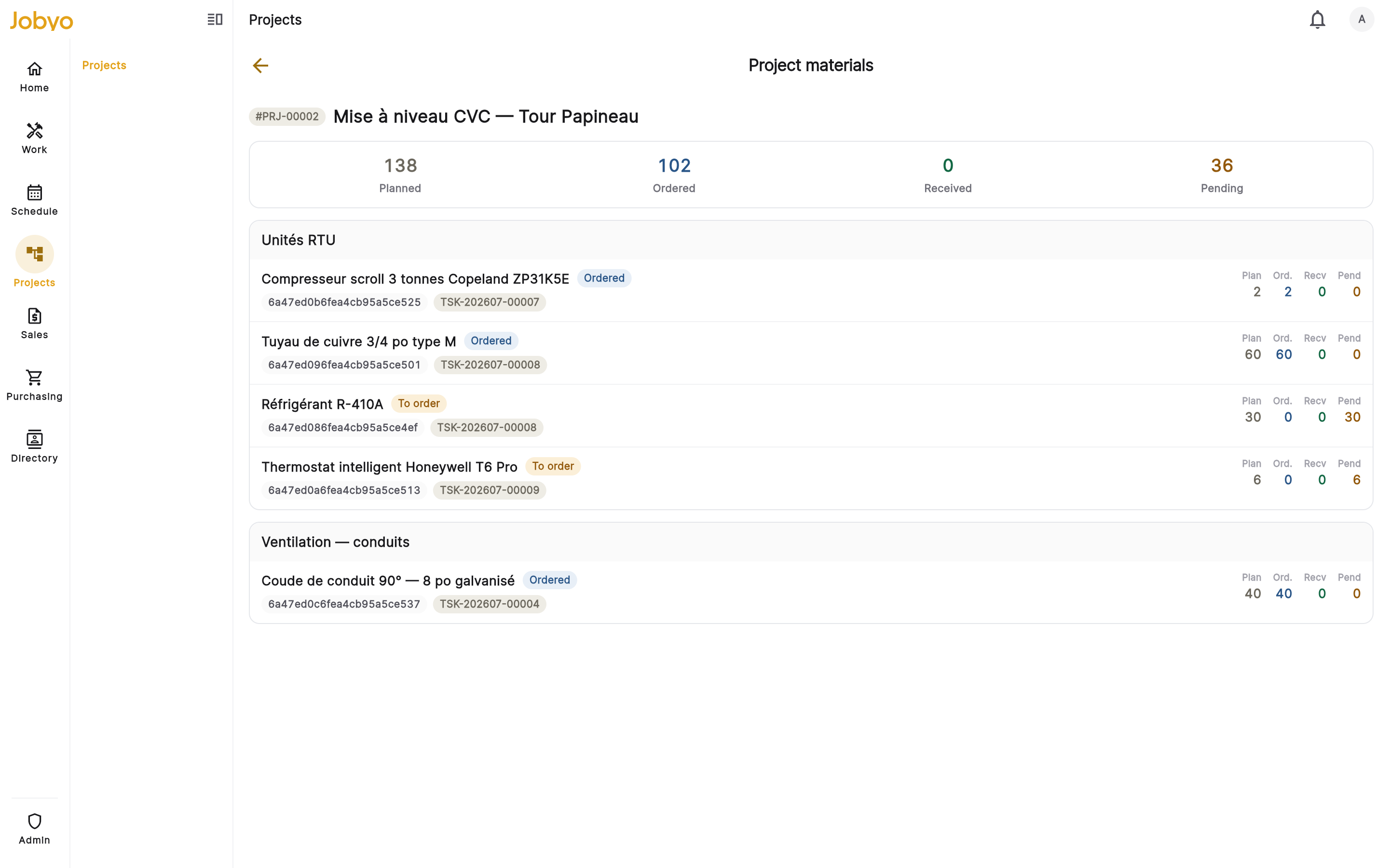
A cost-free, supplier-free tracking view for project managers. For each material it shows, grouped by phase:
| Column | Meaning |
|---|---|
| Planned | Units in the project's task plans |
| Ordered | Units covered by purchase orders (draft/requested/issued/received all count; only cancelled is excluded) |
| Received | Units physically delivered and logged via a goods receipt |
| Pending | Units still to order (planned minus ordered) |
Any row with Pending greater than zero means that material isn't yet fully covered by a purchase order. Because it shows quantities only — no prices, no supplier names — it needs only project view permission, so any project manager can follow procurement progress without cost or purchasing access.
Who can see what
Cost visibility is controlled by permission, not by plan tier.
- Actual cost roll-ups (spend summary, composition, cost by category, cost by work order, cost lens) require the view actual costs permission (
actualCosts:view) — a single on/off gate. Without it, the money figures on the Cost tab are hidden. - Variance requires the view planned costs permission.
- Buy-plan suggested price is hidden unless you hold the view actual costs permission.
- Material status is cost-free and needs only project view permission.
On the project Invoicing view, the billing-coverage structure stays visible to a project manager, but the money buckets are blanked out unless they hold the company-wide view actual costs permission. Seeing the table isn't the same as seeing the figures. See Project invoicing.
If it doesn't work
- Cost tab shows all zerosNo cost has been recorded yet, or it is still processing. Costs come from time, materials, purchases, and expenses logged against the project — check that activity exists.
- Money figures are hiddenYour role doesn't include view actual costs. An administrator can grant it under Users & roles.
- No baseline to pick in the variance version selectorNone has been published yet — the table falls back to comparing against the live plan. Publish one from the Plan tab for a frozen reference instead.
- Variance shows zeroThere are no planned-cost lines yet, or no actual cost has been recorded yet. Both are needed for a meaningful comparison.
- A work order's cost shows under Unallocated instead of its taskLink the work order to its task before cost posts — once a cost entry is posted, it can't be relinked. The work order's cost still shows in Cost by work order either way.
- Labour rate variance doesn't appearYou need the view-actual-costs permission to see it, and at least one comparable time entry must exist.
- Unpriced labour doesn't appearIt only shows when a task labour line or logged time has no labour rate to price against — if everything has a rate, there is nothing to flag.
- Buy-plan prices are blankYou can see the buy plan but not costs. Viewing suggested prices needs the view-actual-costs permission.
- Material status table is emptyNo materials have been planned on this project's tasks. Planned materials are entered at the task and work-order level.