Manage purchase orders
A purchase order (PO) is the document you send a supplier to order goods or materials. In Jobyo it holds the supplier, header details (currency, terms, expected date, ship-to), and a set of ordered lines — then moves through a lifecycle from draft to received, tracking how much of each line has been received and invoiced along the way.
Who uses this
Purchase orders are a back-office procurement surface for operations and admin roles. The list, detail, and create/edit forms sit under Purchase Orders in the app.
The feature is available on the Business plan and up. If purchase orders aren't on your plan, you'll see a locked panel instead of the list — upgrade under Subscriptions & plans.
What you'll need
- Permission to list and view purchase orders to browse them, and create or modify to raise or change them.
- A supplier to order from — required on every PO.
- For buying from a plan: permission to view projects as well, since the planned-requests queue reads project and task data.
- For recording receipts: the create goods receipts permission — a separate permission from purchase orders.
Prices and totals on a PO are actual committed spend, so they're only shown to users who have cost visibility — the Actual costs permission, or the Margin & cost permission. A project manager without either can see a PO's structure — lines, quantities, suppliers — with every amount blanked out. The currency code and all quantities are always shown.
Browse and search
Open the purchase order list
Select Purchase Orders from the main menu. Each row shows the PO number (or a dash if not yet issued), the supplier, a status badge, the total, and the expected delivery date.
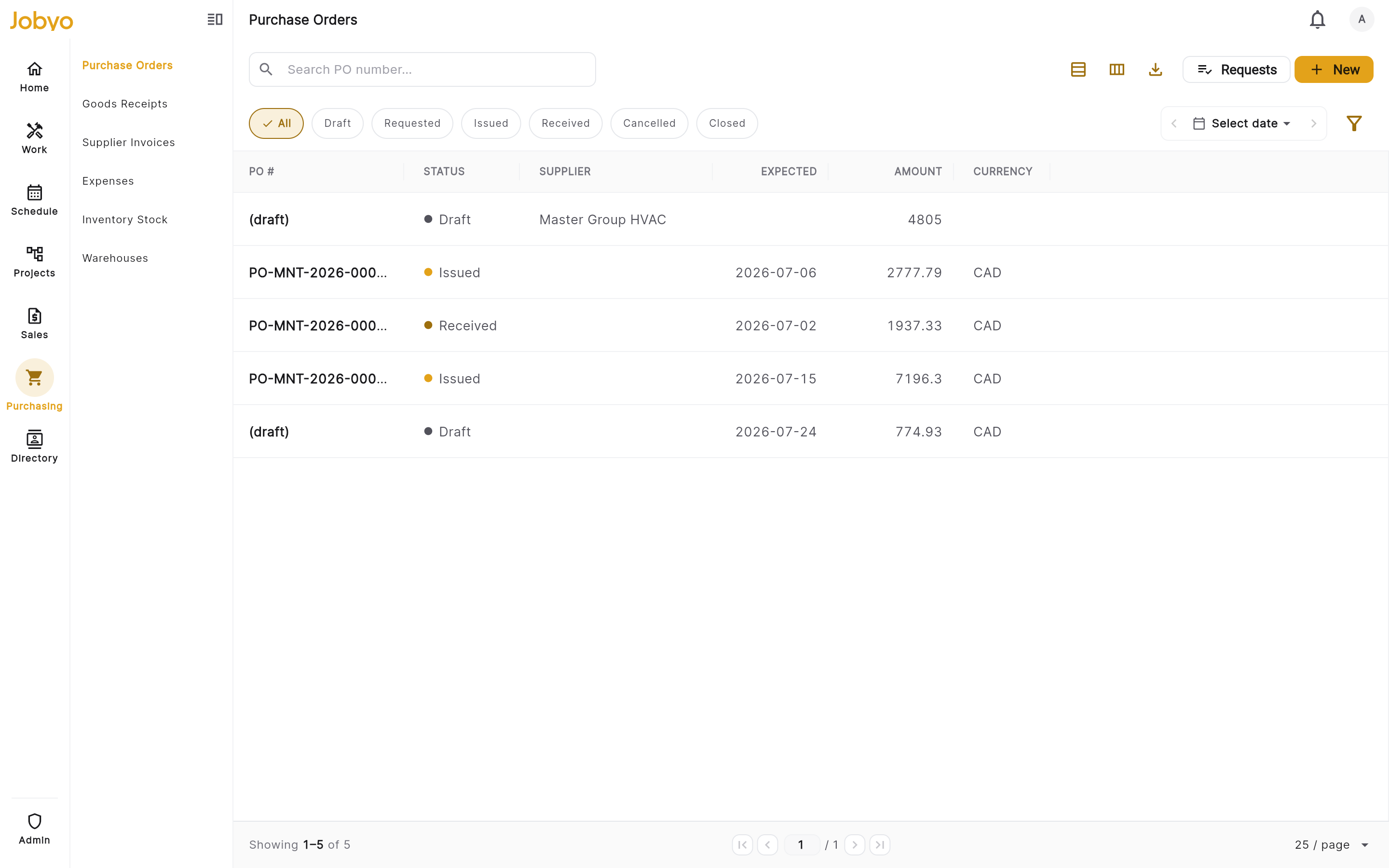
Purchase order list — status badges, supplier, totals, filters Filter to find a PO
Narrow the list by status (Draft · Requested · Issued · Received · Cancelled · Closed — one at a time), order type, supplier, linked project, created by, an expected-date range, invoicing (To invoice · Not invoiced · Partly invoiced), or by typing part of a PO number. To list orders still waiting on goods, see Find purchase orders that aren't fully received. Results are paginated — page or scroll to load more.
Open a record
Click any row to open the PO detail in read-only View mode — supplier snapshot, header, line items, per-line fulfillment progress, totals, and who created, approved, and sent it. The action bar at the bottom shows the actions available for the PO's current status.
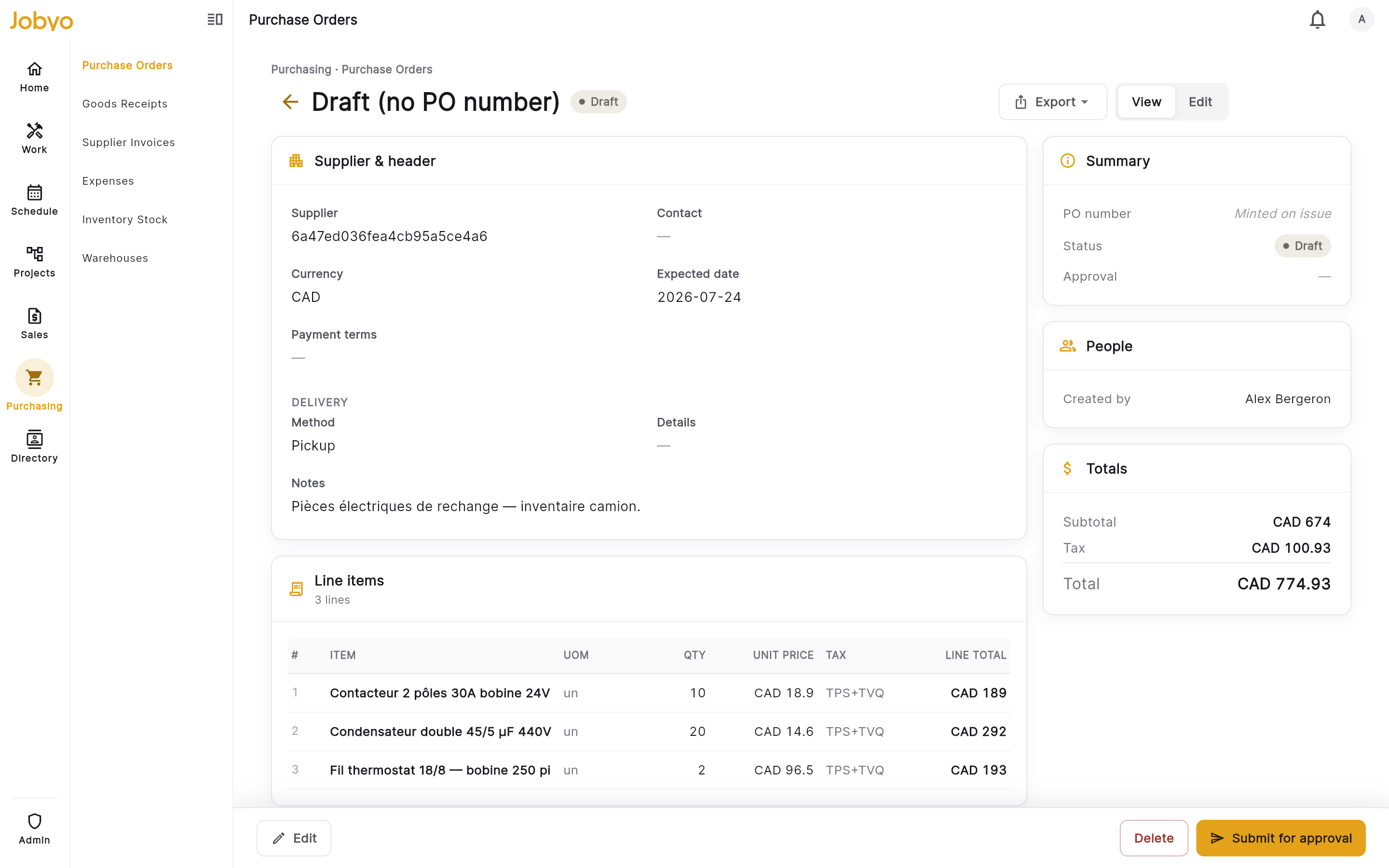
PO detail — header, lines, fulfillment progress, status action bar
Find purchase orders that aren't fully received
There's no separate "received / not received" filter — the PO status already tells you:
| Status | What it means for receiving |
|---|---|
| Issued | Sent to the supplier and not fully received yet — either nothing has arrived, or some lines or quantities have arrived but not all. |
| Received | Every line is fully received. Jobyo sets this automatically when the last quantity is received — you never set it by hand. |
| Closed | Closed early without receiving everything (the rest isn't coming). Read only. |
Filter the list to Issued
Open Purchase Orders and, in the Status filter, select Issued only. The list filters on one status at a time — if you select several, only the first one is applied.
Narrow it down (optional)
Add a Project (one job), a Supplier (the supplier to call), or an Expected date range ending today (orders that should already have arrived). There's no Work Order filter on this list — use the work order's Project instead.
Check each PO's progress
Open a PO: the Received column on each line shows received / ordered (for example 8 / 10), so you can tell "nothing received yet" from "partly received". A partly received PO stays in this list until all of its lines are fully received.
Why does a PO with a goods receipt still show "Issued"?
A PO only becomes Received when, on every line, the quantity accepted on posted goods receipts reaches the quantity ordered. Having a receipt on the PO isn't enough on its own. The usual reasons:
- Partial receipt. At least one line hasn't been received in full (for example 8 of 10), or a line wasn't received at all. Receiving extra on one line doesn't make up for a short line.
- The receipt is still a draft. A receipt created from the Goods Receipts section starts as a Draft receipt and doesn't count until someone opens it and selects Post. (The Record receipt button on the PO posts right away — no draft.)
- Accepted is lower than received. Only the Accepted quantity counts. Units entered as damaged or rejected (received but not accepted) leave the line short.
- The receipt was cancelled or corrected down. The PO goes back from Received to Issued if a receipt is cancelled or a correction lowers the accepted quantity.
- The PO was changed after the receipt. Adding a line or raising a line's quantity reopens it until the new quantity is received too.
- The receipt isn't tied to this PO's lines. For example, a receipt created from a supplier invoice whose lines aren't linked to this PO's lines, or one recorded against a different PO. Those quantities don't count toward this PO.
What to do: open the PO and check the Received column on each line to find the short line. Then post the draft receipt, record the missing quantity, or correct the receipt. If the rest of the order is never coming, the PO can be short-closed — see Not yet in the app.
Attach files to a purchase order
Open any PO and find the Attachments card on the detail screen — its title counts the files already there, e.g. "Attachments (3)". You can attach a supplier quote, packing slip, delivery note, or photo at any PO status (Draft, Requested, Issued, Received, or Cancelled) — there's no need to wait for issue, and nothing blocks you after receipt.
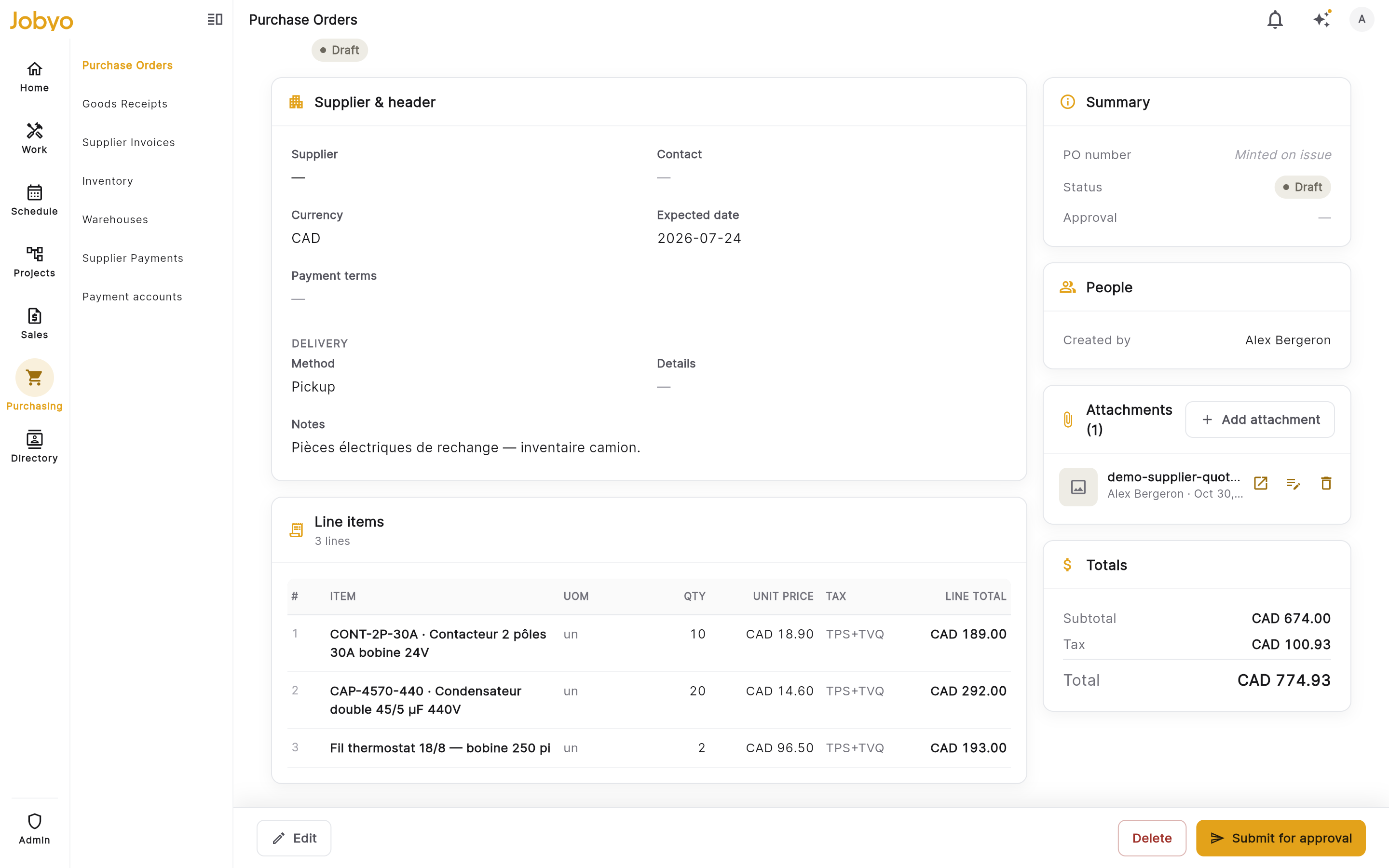
Add a file
Select Add attachment, then Camera (one or more photos, not on web), Photo library (pick one or more existing photos), or File (one document — PDF, Word, Excel, CSV, or image). You can type a short description for each photo before it uploads; uploading several photos keeps going past a single failure and tells you how many of the batch didn't make it.
Open, describe, or remove a file
Select a file (or its open icon) to open it in a new tab. Use the pencil icon to edit its description, or the trash icon to delete it, then confirm.
Anyone who can open the PO sees every file on it — attachments have no separate visibility setting. Adding, editing a description, and deleting each need their own permission (separate from the purchase order permissions); if your role's access is limited to your own work, you can only edit or delete a file you uploaded yourself.
Create a purchase order
Open the New PO form
From the list, select New PO. If you don't see the button, your role doesn't include create — ask an administrator.
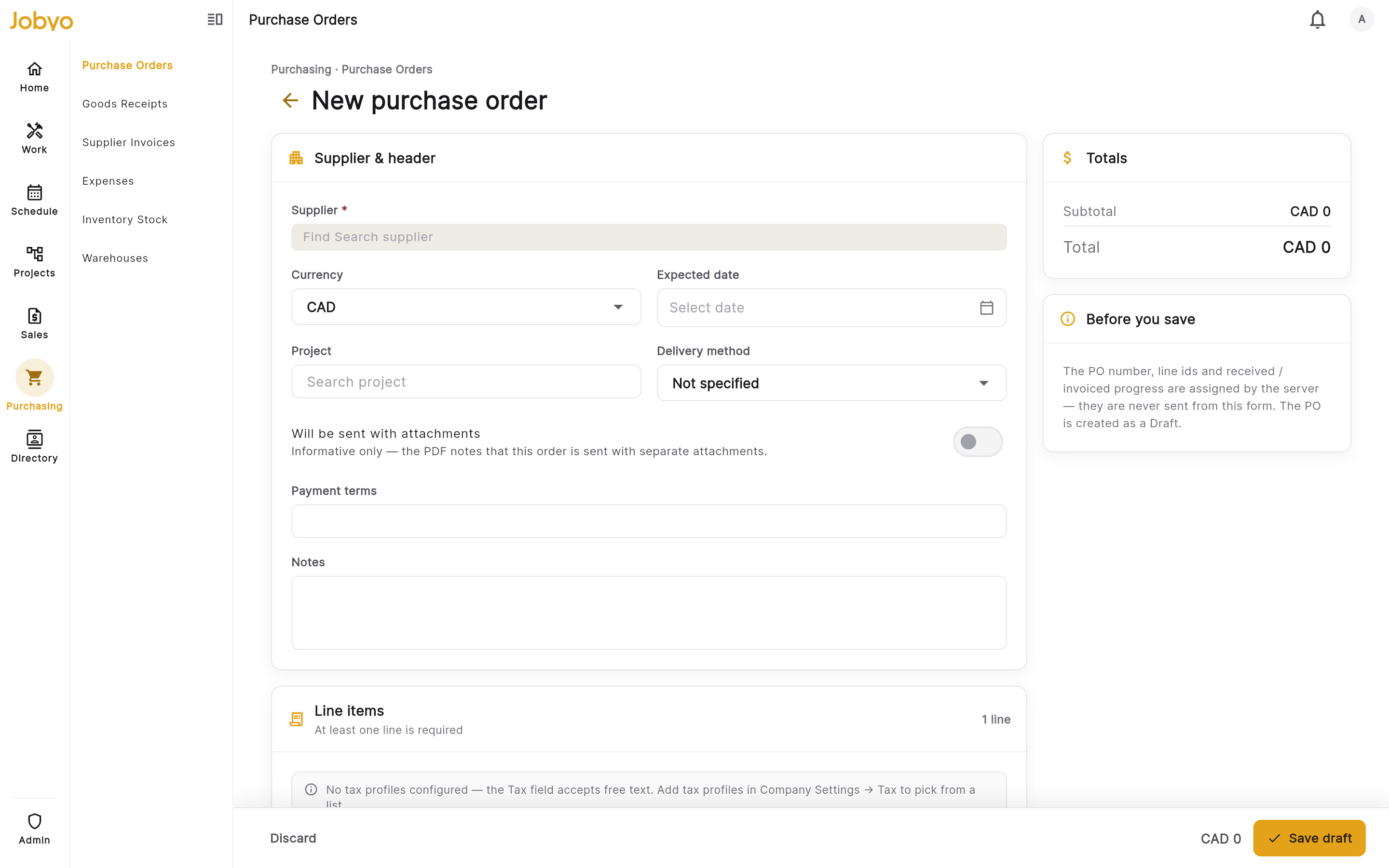
Create form — supplier picker and first line row Choose the supplier
Pick the supplier (required). Jobyo captures a snapshot of the supplier's name, contact, and address at save time — this snapshot stays on the PO and does not update automatically if the supplier record changes later.
Fill in the header (all optional)
Add any of: currency, payment terms, expected delivery date, notes, a ship-to (name, address, and optionally a worksite), and a delivery method (Delivery · Pickup · Courier · Other — pair Other with a delivery note). You can also link the PO to a project and/or work order for reporting and filtering.
Task links go on lines, not the headerDon't try to link a task at the header level — task links belong on individual lines. Sending a task on the PO header is rejected.
Add at least one line
Add one or more line items. For each line, either pick a material from the catalog (which fills the material name) or type a free-text description — one of the two is required per line. Enter the quantity (required, must be greater than zero). Optionally set unit of measure, unit price, and tax code, and link the line to a project, work order, task, or project phase for job-cost tracking. Line subtotal, tax, and total are calculated for you and shown read-only.
Set a destination warehouse and an expected date (optional)
A line can carry a destination warehouse — the warehouse the goods will be received into. Setting it here pre-fills the warehouse on the goods receipt so the receiving team doesn't have to pick it. Leave it blank and stock defaults to your company's Main Warehouse at receipt time. A line can also carry its own expected date — leave it blank and the line simply follows the PO's header expected date (shown greyed, as a fallback, wherever line dates appear); set it when that item is due on a different day than the rest of the order.
Non-project number categoryFor a PO that isn't linked to a project, you may pick a category code (for example SRV or MNT) that forms part of the PO number. A project-linked PO doesn't use a category — the project supplies that part of the number instead. The category can only be changed while the PO is Draft or Requested.
Save the draft
Select Save draft. The PO is created with status Draft. No PO number is assigned yet — the number is minted only when the PO is issued. The totals are calculated by the system.
- "Supplier is required"Choose a supplier before saving — it can't be left blank.
- "Lines must not be empty"Add at least one line item.
- "Quantity must be a positive number"Enter a quantity greater than zero on every line.
- "Description is required"A line has no material selected. Either pick a material from the catalog or type a description.
Buy materials planned on jobs
When materials are planned on projects and tasks, they collect in a buyer planned-requests queue — a single, cross-scope backlog of everything that still needs ordering, netted against what's already on order. There are two doors into the same queue: the Requests button on the purchase order list (the full, company-wide queue), and the single buy/requests button on a project's Plan tab (the same queue, narrowed to that project's phases) — it reads Buy materials if your role can create POs, or Requests if it can only view them.
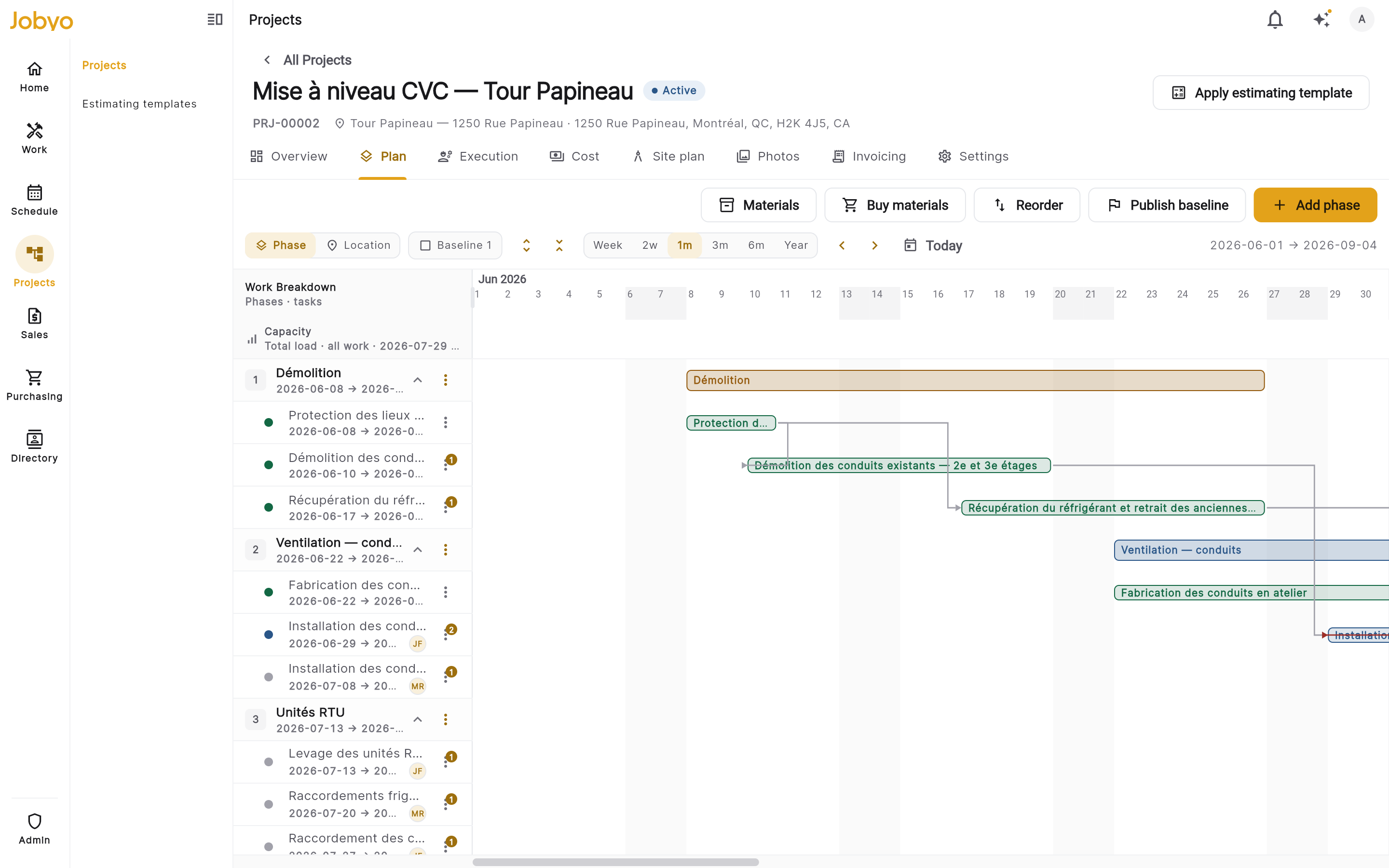
Open the planned-requests queue
From the purchase order list, select Requests; or from a project's Plan tab, select its buy/requests button. It gathers pending planned materials from all projects and standalone (repair / maintenance) tasks, and:
- groups the items by supplier,
- shows the project, task, and phase each material belongs to,
- shows a suggested price, and
- shows how much is already on order versus how much is still remaining.
Select Filter to narrow the queue by Phase, Task, and/or Supplier (including a No supplier option) — each option shows a live count of matching lines; confirm with Apply, or Clear all to reset. An empty queue means nothing is waiting to be bought right now.
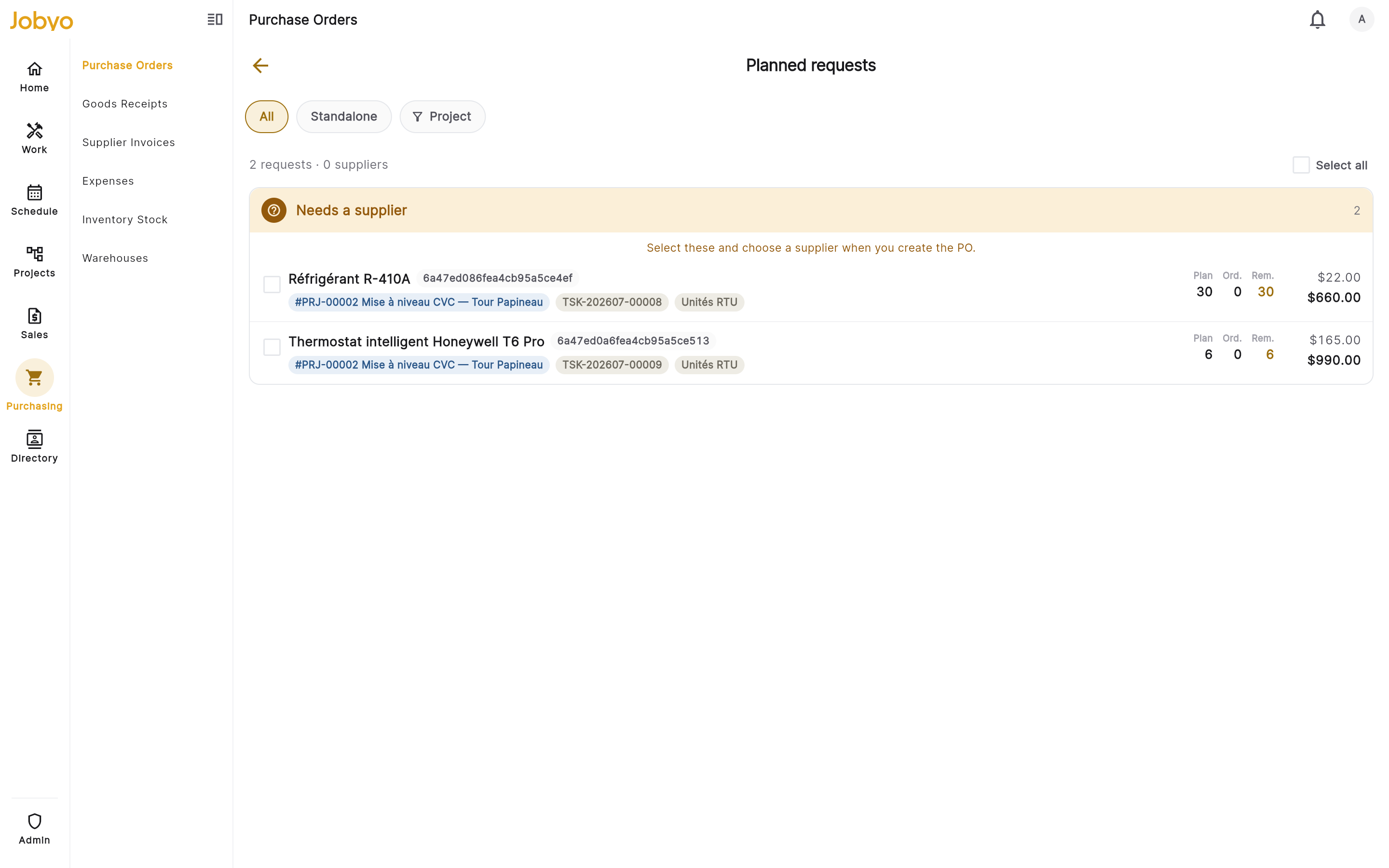
Planned-requests queue — supplier groups, per-line job context, ordered vs remaining 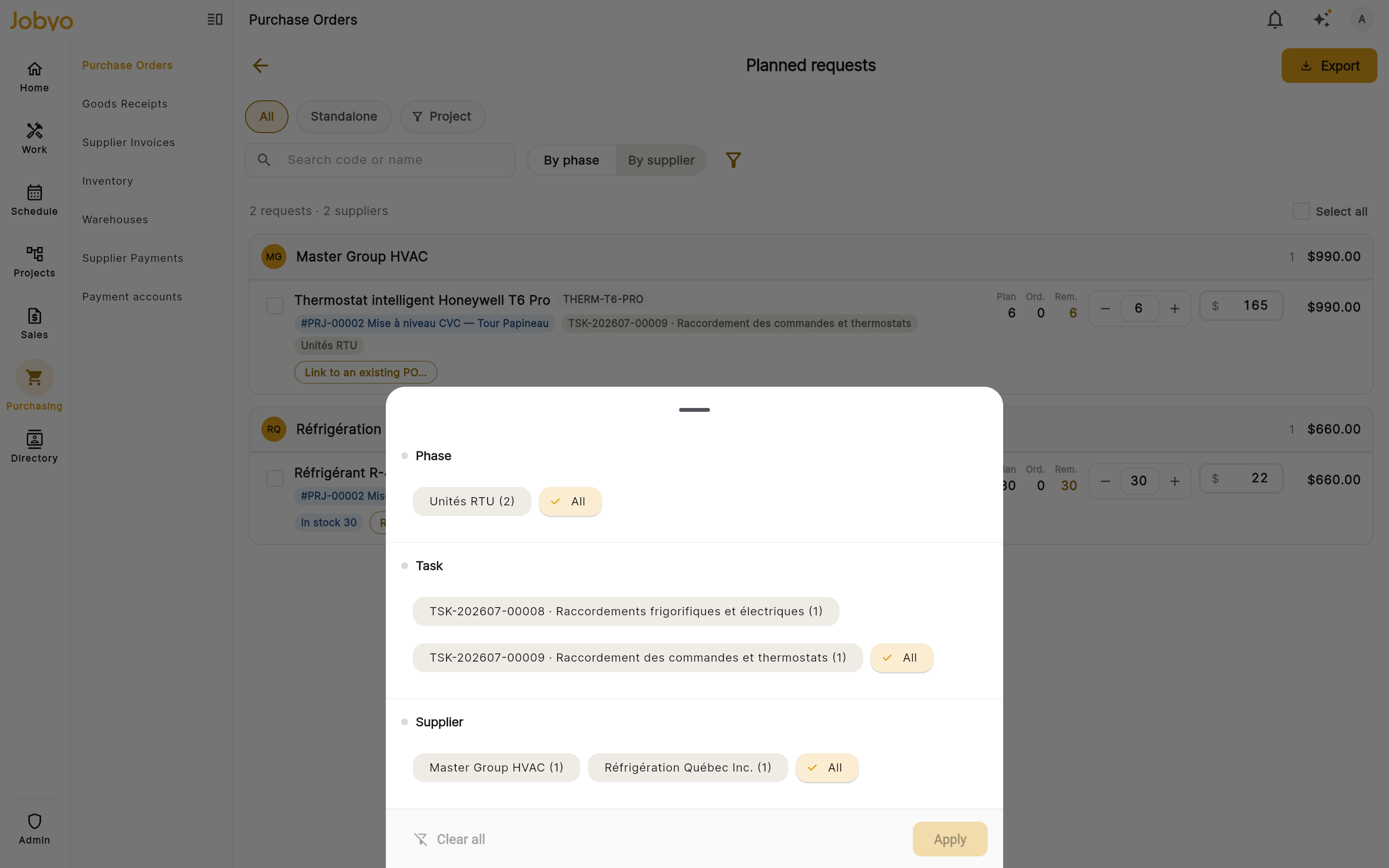
Filter sheet — Phase, Task, and Supplier, each with a live count Select the lines to order
Tick the material lines you want to buy — from one project, or across the mixed cross-scope queue. Select all in <phase> ticks a whole group in one go. Select Create PO (its label counts how many POs it will make, e.g. "Create 2 POs").
Review the create sheet before committing
The sheet that opens offers two switches, both off by default:
- One line per item — merges lines headed for the same PO that share the same catalog item, unit, unit price, project, and expense type (their quantities add up). Leave it off to keep every planned request as its own line.
- Order everything from one supplier — forces the whole selection onto one supplier's PO; Jobyo suggests the supplier most of the selection already prefers, and you can change the pick. Leave it off and each line keeps its own preferred supplier (you're asked to pick one for any line that has none).
A live preview — computed by the server, not estimated — shows exactly what creating now will do, e.g. "12 lines → 9 PO lines on 3 purchase orders." If forcing a single supplier pulls in a line that isn't normally bought from it, a Check these before creating warning flags it (usually bought elsewhere, or never bought from this supplier) with Exclude/Include per line.
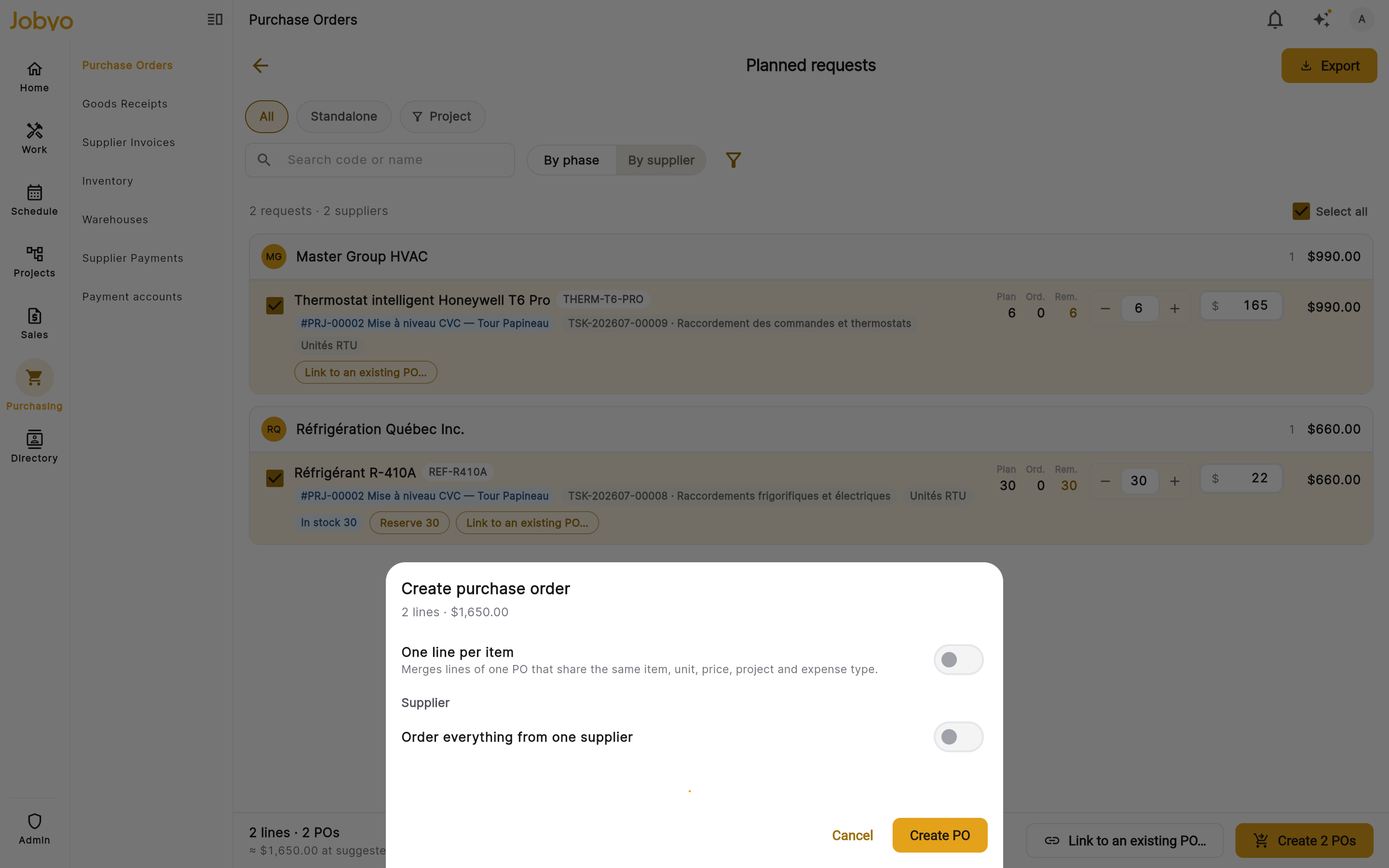
Create sheet — One line per item / Order everything from one supplier toggles Create, or cancel without creating anything
Select Create once the preview looks right. Jobyo fans out one draft PO per supplier automatically — you don't create them one at a time. Each PO also carries its ship-to worksite from the source task (or its project), splitting into a separate PO per supplier and per worksite when the selection spans more than one; and it links a work order automatically only when every line in that PO traces back to exactly one active work order. One PO created opens straight to its detail screen; several open a summary dialog listing each with an Open link. Selecting Cancel instead creates nothing and leaves the queue unchanged.
Review and issue
The new POs are created as drafts. Review each one, then submit and issue it through the normal PO flow below.
If suggested prices show as blank, you don't have cost-visibility permission — you can still select lines and create orders; only the amounts are hidden. If a PO created from the queue is later cancelled, its lines reappear in the queue as still-needed.
If the queue shows "Selection too large — reduce it," your selection covers more distinct suppliers than one batch can create at once. Create in smaller batches, or turn on "Order everything from one supplier" to collapse it onto a single PO.
Move a PO through its lifecycle
Submit for approval (Draft → Requested)
Open a Draft PO and select Submit for approval. The status changes to Requested and lines stay editable. Requested is a mandatory step — a PO can't jump straight from Draft to Issued.
Approve, reject, or send back a requested PO
A PO that requires approval can be approved, rejected, or sent back by a user who holds the Approve permission on Purchase Orders (within their role's approval ceiling). What you can do depends on where the PO stands:
- Not yet decided — Approve it, Reject it, or — when your organisation requires approval before issuing — Send back for edits: a softer alternative to rejecting that asks for a reason and returns the PO to Draft so the requester can revise and resubmit, rather than ending the approval outright.
- Already approved — the PO is locked for supplier, line, and material edits. Notes, the expected date (header or any line's own), ship-to, and delivery method stay editable without unlocking anything else — see Edit an issued PO below. Return to not approved unlocks everything else again if you change your mind before it's issued.
- Rejected — a rejected PO can never be issued. The requester uses Resubmit for approval to send it back into the pending queue after making changes.
The approval decision — who approved, rejected, or sent it back, and when — is recorded on the PO, and the approval badge updates. To stop a requested PO instead of deciding on it, use Cancel PO.
If a PO was issued while its approval was still pending — for example, because your organisation turned on the approval requirement after the PO was already issued — it keeps an Approval pending badge and can still be approved in place from its detail screen. It is not stuck.
Issue to the supplier (Requested → Issued)
Open a Requested PO and select Issue. The PO moves to Issued, Jobyo mints the PO number at this moment (for example PO-00042), and records the issue date and who issued it. Line items lock once issued — you can no longer add, remove, or change lines.
If your organisation requires PO approval (the default), the PO must be approved before it can be issued; otherwise it can be issued directly. See Approve, reject, or send back a requested PO above.
Edit an issued PO (limited fields)
Once issued, most of the PO is locked, but you can still update notes, expected delivery date (the header date, plus you can set or clear any line's own date), ship-to, and delivery method / delivery note. Open the PO, select Edit, change one of those fields, and save. Line items stay read-only.
Once a Draft or Requested PO has been approved it locks for supplier/line/material edits, but Edit stays available and opens this same narrowed form — you don't need Return to not approved just to fix a delivery date or add a note.
Record a goods receipt (Issued → Received)
When goods arrive, open the Issued PO and select Record receipt. A quick-entry dialog opens with one line per item on the PO — enter the quantity for each line you're receiving and choose Direct (cost goes straight to the job or expense) or Stock (goes into inventory; pick an inventory-tracked catalog item). Stock lines always land in your company's Main Warehouse from this screen — there's no condition code, notes field, or warehouse choice here. Select Post receipt.
What you'll see: the receipt posts immediately — there's no draft step on this path. Received quantities update on each PO line (the Received column shows received / ordered, e.g. 8 / 10). When every line is fully received, the PO automatically becomes Received — you never set that status by hand. Until then it stays Issued — see why a PO with a receipt can still show Issued.
If a supplier ships more units than were ordered on a line, Jobyo records the actual quantity with a warning rather than blocking you.
Cancel a PO
Open a Requested or Issued PO and select Cancel PO, then confirm. The status changes to Cancelled. If nothing was received or invoiced against it, the PO can be reopened as a draft later. To remove a Draft you no longer need, delete it instead.
You can't cancel (or delete) a PO once any line has goods received or an invoice matched against it. Cancel or delete before fulfillment begins.
Reopen a cancelled PO as a draft
If a PO was cancelled by mistake, or the order is needed again, open the Cancelled PO (filter the list by Status: Cancelled), select Reopen as draft, and confirm. You need the Approve permission on purchase orders.
What you'll see: the PO goes back to Draft. It keeps its PO number, but its approval decision is cleared, so it has to be submitted, approved, and issued again before it goes to the supplier.
Reopen as draft is unavailable if a goods receipt or purchase invoice is linked to the PO, or if any line shows a received or invoiced quantity. Create a new PO instead.
Delete a draft PO
Open a Draft PO with no receipt or invoice activity and select Delete, then confirm. The PO is soft-deleted — it disappears from normal list views but the record is retained, with no in-app filter to bring it back.
Admin — permanently delete a cancelled PO
An administrator can permanently delete a Cancelled PO, removing it and its lines for good — directly from that PO's detail screen, no soft-delete step needed first. Filter the list by Status: Cancelled to find it, open it, select Delete permanently in the action bar, and confirm. The same fulfillment guard still applies — a permanent delete is blocked if any line has received or invoiced quantities, and that guard can't be overridden.
Permanent delete only works from a Cancelled PO's detail screen — it isn't how you remove a soft-deleted Draft. There's no in-app way to permanently remove a soft-deleted Draft PO. Permanent deletion can't be undone.
The purchase order lifecycle
A PO always follows this path — Draft → Requested → Issued → Received — with Cancelled as the exit:
| Status | What it means | What you can do |
|---|---|---|
| Draft | Being prepared; not yet submitted | Edit everything; submit; delete |
| Requested | Submitted; awaiting issue | Edit everything; approve; issue; cancel |
| Issued | Sent to supplier; PO number assigned | Edit notes / dates / ship-to only; record goods receipts; cancel (if no receipts) |
| Received | All ordered lines received | Read only |
| Closed | Short-closed before everything was received | Read only |
| Cancelled | Cancelled before fulfillment | Read only; reopen as draft (if nothing received or invoiced) |
Key points:
- The PO number is assigned only at Issue — before that it shows as a dash.
- Totals (subtotal, tax, total) are always calculated by the system; you never type them.
- Received and invoiced quantities update automatically as goods receipts and purchase invoices are processed — you never enter them directly.
- You can't reopen a received PO by hand — but if a receipt on it is cancelled or corrected down, it automatically goes back to Issued. A Cancelled PO can be reopened as a draft, as long as nothing was received or invoiced against it.
Not yet in the app
These capabilities exist in Jobyo's backend but don't have buttons in the app yet:
- Short-close a PO — a partially-received PO can be closed without receiving every line (for example, when a supplier can no longer fulfil the rest). This transition is supported in the backend but has no button yet — contact your admin if you need a PO closed early.
Exact menu labels and filter names may differ slightly from what's written here depending on your build. If something is in a different place, look for the equivalent action in the same area.
If it doesn't work
- No "New PO" buttonYour role doesn't include creating purchase orders. An administrator can grant it under Users & roles.
- Feature lockedPurchase Orders isn't on your current plan (it needs Business or higher). Upgrade under Subscriptions & plans.
- "Edit" is unavailableThe PO is past Draft/Requested. Once issued, only notes, dates, ship-to, and delivery fields can change; Received/Cancelled POs are read-only.
- Approve button disabledYou don't hold the Approve permission on Purchase Orders. Ask an approver, or an admin to grant the permission.
- Cancel or Delete greyed outA line already has goods received or an invoice matched. Fulfillment activity blocks cancel and delete.
- "Record receipt" missingEither the PO isn't Issued, or your account lacks the goods-receipt permission (separate from purchase orders). Contact your admin.
- "You do not have permission" on Record receipt, even though you have the Goods Receipts permissionThree possible causes: the PO's project is Completed (restricted for members scoped to their own projects — ask an admin or have the project reopened); the PO isn't one of your projects (your access is limited to your own projects); or your role has Create on Goods Receipts but not Approve — recording a receipt here posts it right away, which needs Approve, not just Create (common for Project Manager roles by design). Ask an Ops Manager or admin to record it, or have Approve added to your role.
- Record receipt blocked — "Re-approval required" or an approval-pending indicatorThe purchase order still needs approval (or needs re-approval after a revision) before it can be received against. Ask an approver to approve it, then try again.
- Prices show as blankYou don't have cost-visibility permission. Quantities and structure are still shown; only money is hidden.