Work orders
A work order is the unit of field execution — it links a worksite (and optionally a task), collects the time, materials, expenses and photos for the job, then closes, gets approved, and bills. This page covers the whole life of a work order: creating one, working the detail hub, running the lifecycle, and settling the billing.
Two things to keep separate
A work order carries two independent statuses, and Jobyo surfaces them in different places so they never get confused:
- Execution status — the header badge: Open, Closed, or Cancelled. This is the job's lifecycle.
- Billing status — shown only on the Cost tab. It's derived by Jobyo from how the job is set to bill and whether it's been invoiced — you never set it directly.
Alongside those sit two coordinator flags — an edit lock and an approval sign-off — that gate who can change what and when.
Create a work order
Technician OperationsWhen you'd do this
Create a work order when there's a piece of field work to carry out and track — a repair, an install, a scheduled maintenance visit. You can start it from a task that's already been planned, or stand it up directly against a worksite.
What you'll need
- Permission to create work orders. If you can't see the New work order button, your role doesn't include it — ask an administrator.
- The worksite the work happens at. This is required.
- Optional: a task to link the work order to, so execution rolls up to the plan.
Steps
Open the New work order form
From Field Operations → Work Orders, select New work order in the top right. You can also start one from an open task using Create work order on the task detail.
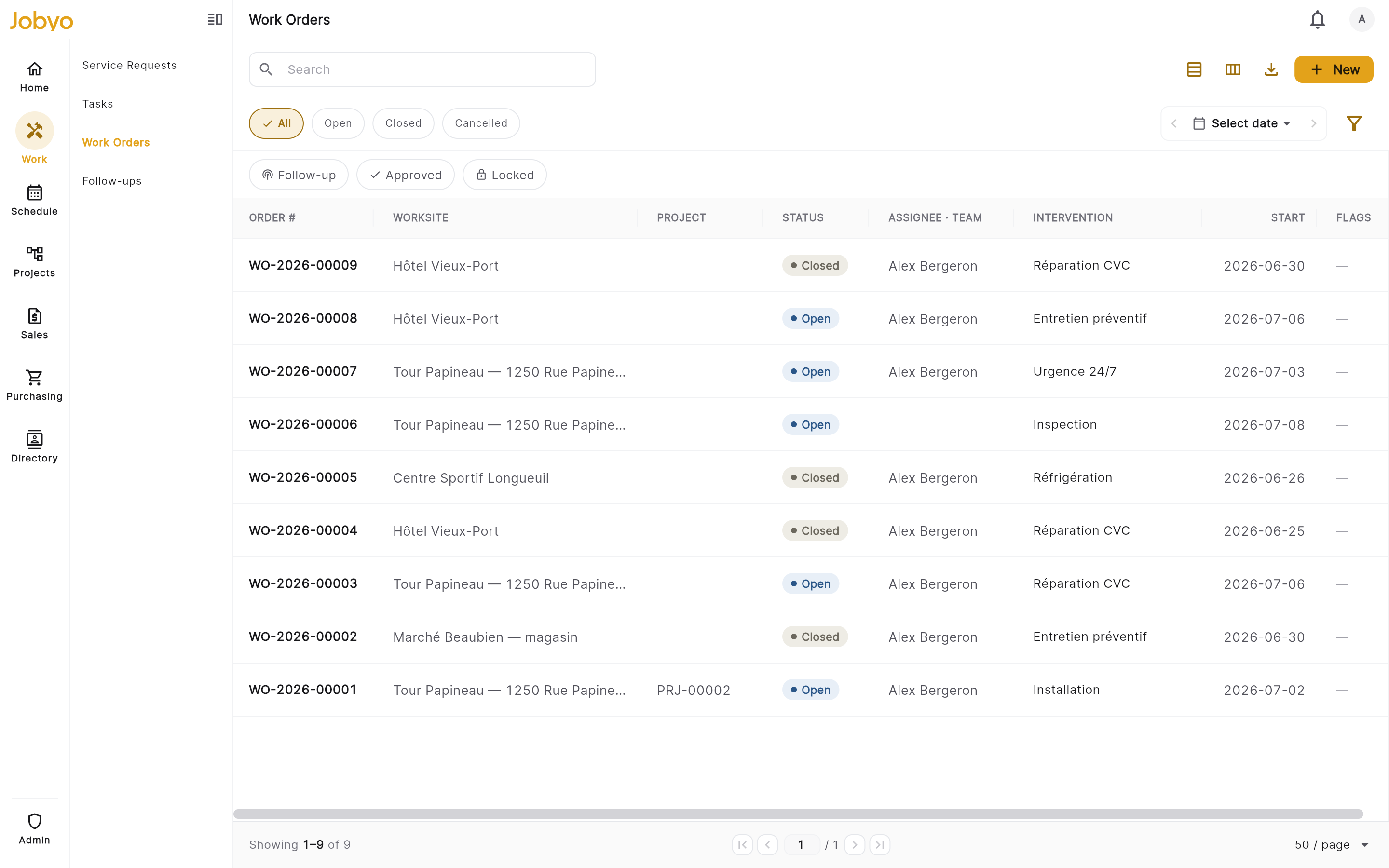
Work orders list — "New work order" button, top right Choose the worksite
Pick the worksite where the work takes place. Jobyo captures a snapshot of the site's name and address onto the work order, so the record stays accurate even if the site is edited later.
Link a task (optional)
If this work fulfils a planned task, link it here. Only individual tasks can be linked — not a recurring or parent task. Linking sets the task to In progress. Leave it blank to create a standalone work order.
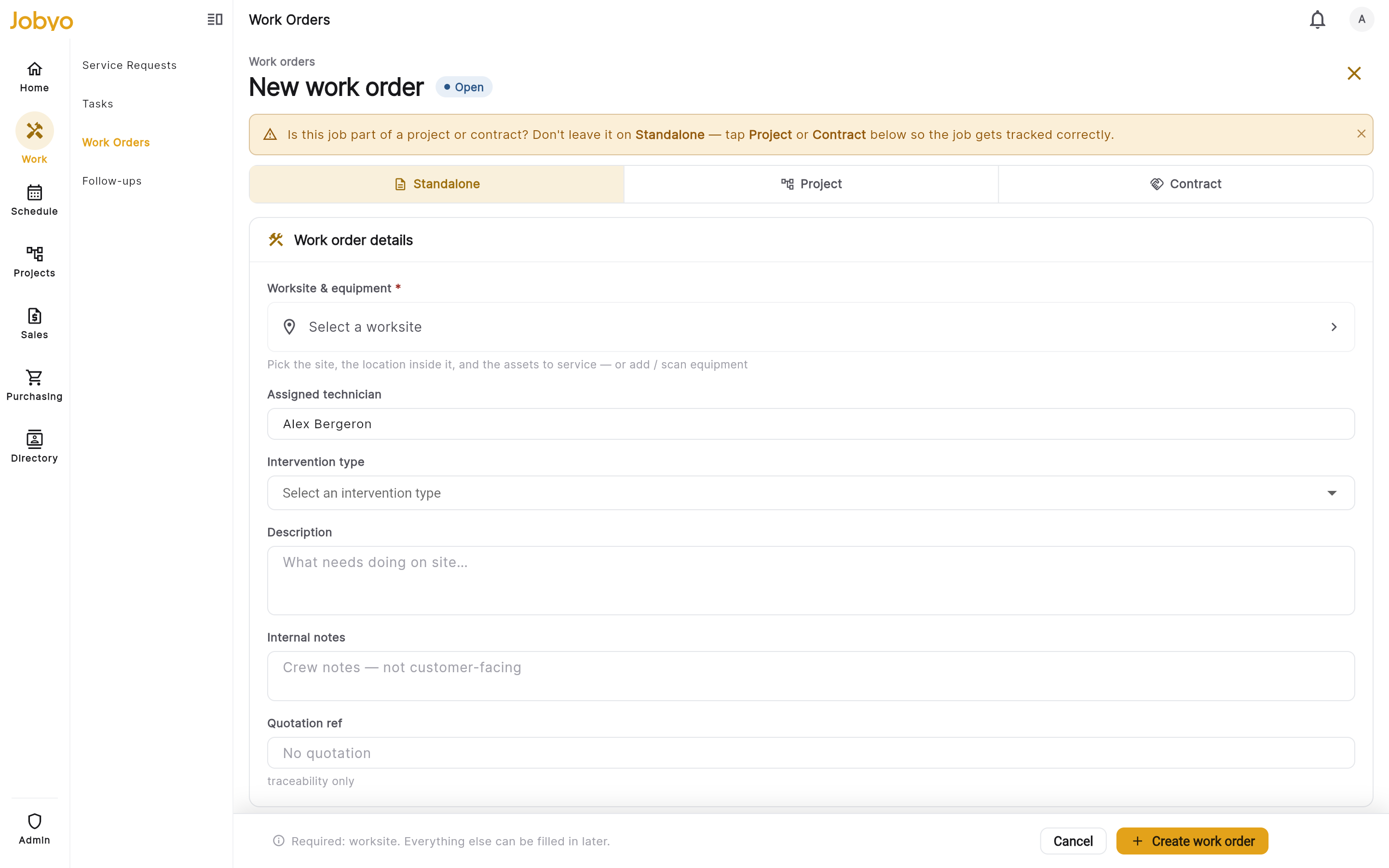
Create form — Worksite (required) and Task (optional) pickers Add the work details
Set who's doing it (assignee or team), the intervention type, a description, any equipment involved, and the planned start and end. Everything except the worksite is optional and can be filled in later.
Set billing (optional)
If you handle billing, declare how the job will be charged — standalone, project, or contract — and the close action. If you don't own this decision, leave it blank; it can be set later from the Cost tab.
TipNot sure how it's billed? Leave billing empty. A work order created without billing details is treated as billable by default once you close it, so you can still invoice it later.
Save
Select Create work order. The work order is created with the status Open and given its own page — the hub, described next — where you record the actual work.
The work order hub
Opening a work order lands you on its detail page — the hub for everything about the job. A header sits across the top; the work is organised into tabs below it.
- On a wide screen, the tabs are Details · Times · Materials · Cost, with a persistent Photos panel and a slim More details card down the right side.
- On a phone or narrow window, the right column collapses: Photos becomes its own tab, and the More details card moves to the bottom of the Details tab. A one-tap Log work strip (Add time · Materials · Photo · Expense) sits above the tabs for quick recording on site.
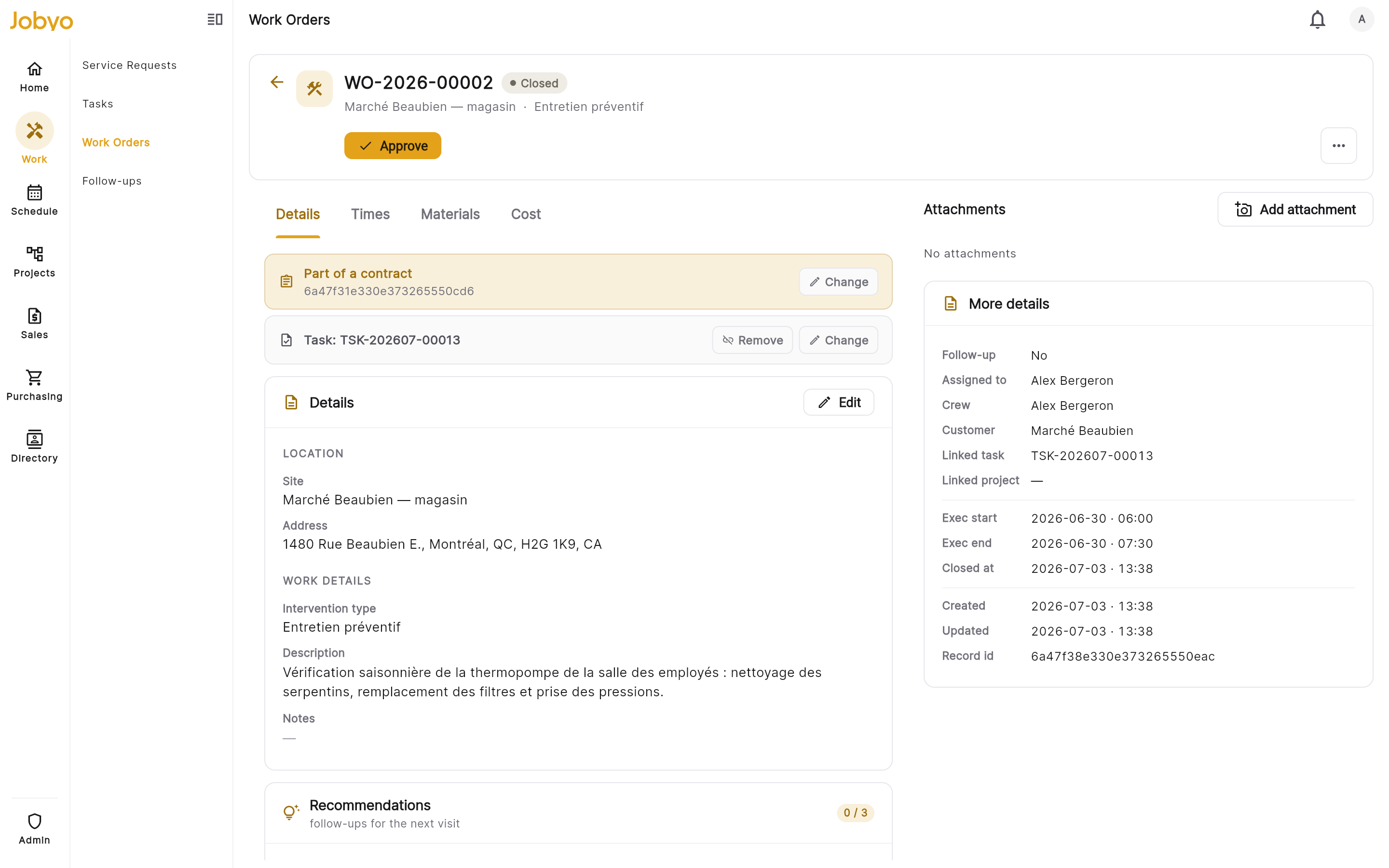
Details — worksite, job type, intervention, description, recommendations, and the client signature. Times — labour time entries. Materials — parts and consumables, plus other expenses. Cost — billing and the cost roll-up (only if your role can view costs). Photos — before / after evidence and attachments.
The header shows the work order number, the execution-status badge, any flags (locked, approved, follow-up), and one focused primary action plus a ⋯ More menu. Which primary action you see depends on the state:
| Execution status | Primary action |
|---|---|
| Open | Close |
| Closed | Approve (coordinators, if not yet approved) — otherwise Reopen (shown disabled while the job is approved) |
| Cancelled | None — the job is terminal |
Every action is gated on both your permissions and the work order's state. Actions your role can't perform are hidden; actions blocked by the current state are shown disabled with a plain-language reason rather than failing silently.
Record the work
You record execution as the job happens. Each piece saves on its own, so a half-finished form is never lost on a patchy connection.
Times
TechnicianThe Times tab holds labour time entries, grouped per team member. Add and delete apply immediately — there's no Edit press. Entries capture operational detail (duration, transport, overtime); rates and money never appear here — those live on the Cost tab and are permission-gated.
A time entry can be added or deleted, but not edited in place — to correct one, delete it and add it again. The execution window and crew shown in More details are derived automatically from the earliest check-in and latest check-out, so you never type them.
Materials & other expenses
Both live on the Materials tab.
- Materials — add a line per part, consumable, or tool used: description, quantity, unit, and an optional unit cost. Edit and delete need the modify permission.
- Other expenses — a lump cost the technician enters (name, description, amount). Operations and admin can adjust the entered amount. The whole subsection is hidden if your role can't see costs.
Photos & attachments
Add before / after photos and files from the Photos panel (its own tab on a phone). Uploads, descriptions, and deletes apply immediately.
Photos and attachments aren't part of the create form — add them from the work order's Photos panel once the record exists. This keeps uploads reliable on a phone with a patchy connection.
Recommendations
On the Details tab, add up to three short recommendations — quick notes "for the next visit", each with an urgency (Low · Normal · High · Urgent). They post to the follow-up feed but do not block closing. New recommendations can only be added while the work order is still open and unsettled; once it's closed, approved, locked, or invoiced the list is read-only.
Client signature
Also on Details: capture a customer sign-off by drawing on a canvas. Signing is a direct action (no Edit press) and is available while the work order is open and you can edit it. The stored signature shows the signer's name and date.
Run the lifecycle
Execution status moves through a small, deliberate set of transitions — each from its own action, never from the edit form.
| From | Action | To |
|---|---|---|
| Open | Close | Closed |
| Closed | Reopen | Open |
| Open or Closed | Cancel | Cancelled (terminal) |
Close
Select Close on an open work order
Close is the primary header action while the job is Open.
Confirm
Closing completes the linked task, derives a billing status from the billing setup — and, importantly, does not create an invoice. The status becomes Closed.
Closing only sets the execution status to Closed and works out the billing status. Creating the invoice is a separate, explicit step on the Cost tab (see Billing below).
Reopen
Reopening a Closed work order clears the close timestamp and returns it to Open.
Once an invoice has been issued (posted cost entries exist), the work order is settled and can't be reopened. An approved work order can't be reopened either — someone with the approve permission must remove the approval first. Reopen is only available on a closed job that hasn't been billed and isn't approved.
Cancel
Cancelling is in the ⋯ More menu.
Cancelling sets the status to Cancelled with no un-cancel — there's no way back. Any draft cost entries are soft-deleted. Cancel is blocked if the work order already has posted (invoiced) cost entries, and on an approved job — remove the approval first. If you need the work back, create a new work order.
Lock, approve & follow-up
These sit in the ⋯ More menu and are mostly coordinator controls.
- Lock / Unlock — a coordinator (a role holding approve) freezes the work order. While locked, editing, closing, reopening, cancelling, reassigning, follow-up, and approval are all blocked. Billing is hard-locked even for admins until it's unlocked. Field technicians can't lock.
- Approve / Remove approval — a coordinator sign-off flag, available only once the work order is Closed (you can't approve an open job). It doesn't change execution or billing status, and it isn't required for invoicing — approval and billing are independent. What it does do is fully lock the work order: while approved, editing, reopening, cancelling, deleting, and billing changes are all refused, with no admin bypass — even the edit-lock leniency admins enjoy doesn't extend here. Removing the approval is the only way to unlock it, and that stays available to anyone with the approve permission. On a closed, not-yet-approved job, Approve is the header's primary action for coordinators.
- Flag / Clear follow-up — a lightweight toggle (no confirmation) to mark a job as needing a follow-up. It needs the modify permission.
Reassign or detach the task
From the Details tab's job-context strip (or the ⋯ More menu), you can change which task a work order is linked to.
- Reassign / Link task — pick a different task. Where the host wires it up you search by name; otherwise you enter a task ID.
- Detach task — clear the task link entirely (this is not an error state).
Reassigning or detaching a task is only allowed while the work order is Open and unlocked. Reopen a closed one first if you need to change its task.
Billing & the Cost tab
Everything about how the job bills lives on the Cost tab, which appears only for roles that can view costs.
The billing card
Shows the derived, read-only billing status badge plus the three billing axes:
- Structure — standalone · project · contract
- Policy — billable · non-billable · group-billed
- Close action — invoice · collect on site · skip invoice
Project and contract jobs also show the linked project (and phase) or contract, with a banner explaining that settlement happens in the Project or Contract module rather than here. Once an invoice is issued, a Settled banner locks the card.
Edit billing
Select Edit billing (a coordinator action — held by approve) to open the billing sheet and set the structure, policy, and close action. Jobyo works the billing status out from these — you never set it directly. The options are kept consistent for you: choosing a project or contract structure switches the policy to group-billed and hands the close action to that module; a standalone job takes a close action of invoice, collect on site, or skip invoice.
Billing can be changed while the work order is unlocked, not approved, and hasn't been invoiced. It's hard-locked while the work order is locked or approved (even for admins) and permanently locked once an invoice is issued.
Even without the coordinator billing permission, a technician can retype an open, unsettled work order between standalone / project / contract from the job-context strip on the Details tab — useful for attaching field work to the right project on site. Once a coordinator has set the full billing context, they own it from there.
The cost roll-up
Below the billing card, the Cost entries roll-up totals the job: Labour hours, Materials count, Expenses lines, any Purchases, and the cost figure — the Actual cost (summed from posted cost entries) or an Est. cost fallback. The cost amount is permission-gated: a user without cost-view sees the operational counts but never a dollar figure.
The itemised breakdown groups entries into Labour · Transport · Materials · Other expenses · Purchase allocations, each tagged Draft or Posted (posted entries are locked). On draft rows you may:
- Change profile on a labour or transport line (needs cost-modify and a wired labour-profile picker), which recomputes the amount.
- Set cost / Edit cost on a draft material line whose cost is blank or was typed by hand.
Quantities (hours, transport, items) come from the Times, Materials and Expenses records; the cost basis (labour profile, catalog cost) is managed on the cost entry. Use the Refresh control on the roll-up after adding or editing a material to re-pull the derived entries.
Create the invoice
When a job is ready to bill, the Cost tab shows a Create invoice card. It becomes actionable only when all four conditions are met:
- ClosedThe work order must be in the Closed state.
- StandaloneThe billing structure is standalone — project and contract jobs settle in their own module instead.
- Billable policyThe billing policy is set to billable (not non-billable or group-billed).
- Pending invoiceThe derived billing status is "pending invoice".
Approval is not one of the conditions — an approved job and an unapproved one can both be invoiced. Creating the invoice mints a WO-backed draft from the cost entries and moves billing from pending invoice to draft invoice; the card then shows a View draft link. Once the invoice is sent, it flips to Invoice issued with a View invoice link, and costs are locked. This action additionally needs the Sale Invoices · create permission and the Invoices feature on your plan.
Delete a work order
Delete is in the ⋯ More menu and needs the remove permission. It's a soft-delete — the record is removed from default lists but kept for audit, with no child cascade.
- Posted cost entries existThe job has invoiced/posted costs — it can no longer be deleted.
- A sent invoice references itAn issued (non-draft) invoice points at this work order. Deal with the invoice first.
- Active child recordsTime entries, materials, or other expenses still exist on the work order.
- Active attachmentsRemove the attachments first, then delete.
- Open feed itemsFeed items still Open or In review are linked to the job. Resolve, dismiss, or convert them, then delete.
The block message names the specific guard that fired, so you know exactly what to clear.
Access & availability
Administrator- Permissions — the workOrders permission gates every action: list and view to browse and open; create to create; modify for general edits and all lifecycle transitions (close / reopen / cancel), task reassign, follow-up, and the technician link-project; approve for lock, approval, and billing edits (the coordinator gate); remove for delete. Row-level visibility scopes which work orders each person sees.
- Cost tab — the actualCosts permission gates it: view to see the Cost tab and cost figures, modify to change a cost entry's profile.
- Invoicing — the Create-invoice action additionally needs Sale Invoices · create and the Invoices feature.
- Plan — Work Orders is available from the Team plan and up. On a lower plan you'll see a locked panel instead of the list.
A few things aren't surfaced in the work order screens today: Export PDF shows as "Available soon" unless the deployment has wired the report flow; snooze a work order is a dashboard action, not a control here; and time entries can only be added or deleted, not edited in place.
If it doesn't work
- No "New" buttonYour role doesn't include creating work orders. An administrator can grant it under Users & roles.
- Feature lockedWork Orders isn't on your current plan. You'll see a locked panel instead of the list — upgrade under Subscriptions & plans.
- "Worksite not found"The chosen site was archived. Pick an active worksite, or restore it in Worksites.
- Can't link the taskOnly individual tasks can be linked, and task changes need an Open work order. Reopen a closed one first.
- An action is greyed outThe state blocks it — the button carries the reason (e.g. locked, already settled, wrong status). Clear the reason and it re-enables.
- Work order is lockedIt's been frozen for review. A coordinator can unlock it before changes are made.
- Can't edit billingBilling is locked while the work order is locked, and permanently once invoiced. Unlock it, or it can no longer change.
- Create invoice button missingThe job must be closed, standalone, billable, and pending invoice — the Cost tab lists which of the four is unmet. Approval is not one of them.
- Cost tab isn't thereYour role can't view costs. An administrator can grant the actual-costs view permission.