Log a service request
A service request is the first stop for any reported issue or service need. Office and dispatch staff capture who's calling, what's wrong, how urgent it is, and where it is — then triage it and convert it into a task for the field team.
When you'd do this
Log a service request whenever a service need comes in — a customer phones about a fault, an email lands, or someone reports a problem through the app. The request holds the details while it's triaged, then becomes a task that carries the work forward to a work order. Because Jobyo snapshots the customer and worksite at the moment of intake, the record stays readable even if those directory entries change later.
What you'll need
- Permission to create service requests. If you can't see the new-request button, your role doesn't include it — ask an administrator.
- Optional: the customer and worksite the request relates to. Both are optional, but linking them pre-fills contact and address details and unlocks site history.
Log a new request
Open the intake form
From Service Requests, start a new request. You can capture the full details here, or use the quick-create panel that slides in from the right of any screen when you need to log something mid-conversation without leaving what you're doing.
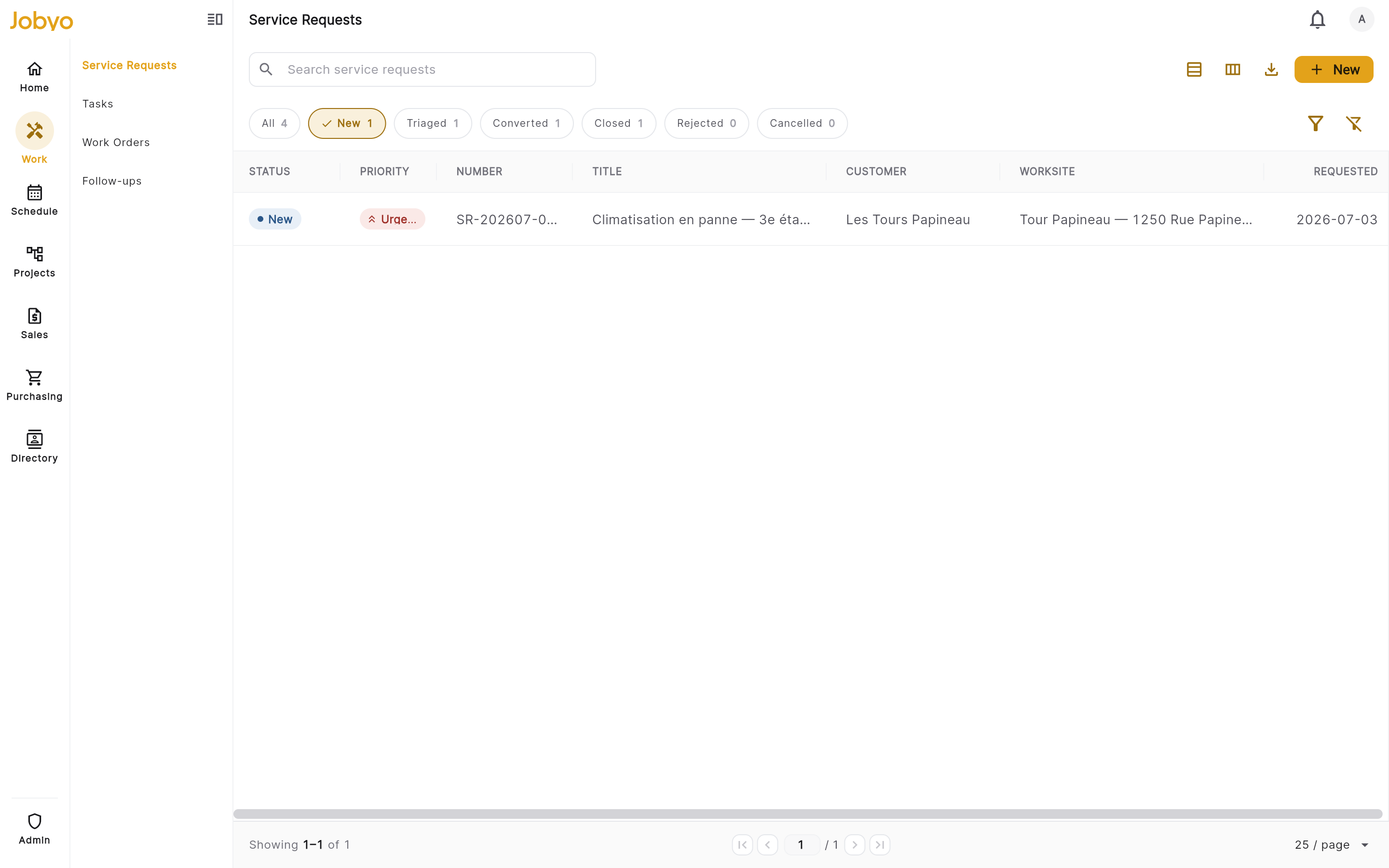
Service requests list — new-request button and status pills Record who's calling
Enter the requester name, and optionally their email and phone. Add an on-site contact if a different person will let the technician in, plus any access instructions (gate codes, key-box location, site hours). Set the requester type — customer, resident, employee, technician, or other.
Link a customer and worksite (optional)
Start typing in the Customer or Worksite field to search your directory. Pick the right record and Jobyo pre-fills any empty contact and address fields from it. Anything you've already typed is left untouched.
Both are optionalYou can log a request without a customer or worksite and add them later. Linking a worksite now, though, is what lets you see that site's history of past requests and work orders.
Describe the problem
Give the issue a short title (for example, "AC unit not cooling") and a fuller description with as much detail as the caller can give.
Set the condition flags and urgency
Toggle the condition flags that apply — system working, system shut down, leak detected, safety concern, previously reported. Choose a priority (low, normal, high, urgent) and the source channel the request came in through (phone, email, portal, app). Add any internal notes — these stay visible to your team only.
Save
Save the request. Jobyo gives it an auto-generated number (for example,
SR-202606-001), sets its status to New, records the intake time, and assigns it to you by default.
What you'll see
The saved request opens on its own detail page with a coloured status and priority header, grouped sections for the problem, requester, and site, the condition flags, internal notes, a timeline, and — once a site is linked — a site history panel showing other requests and work orders for the same worksite.
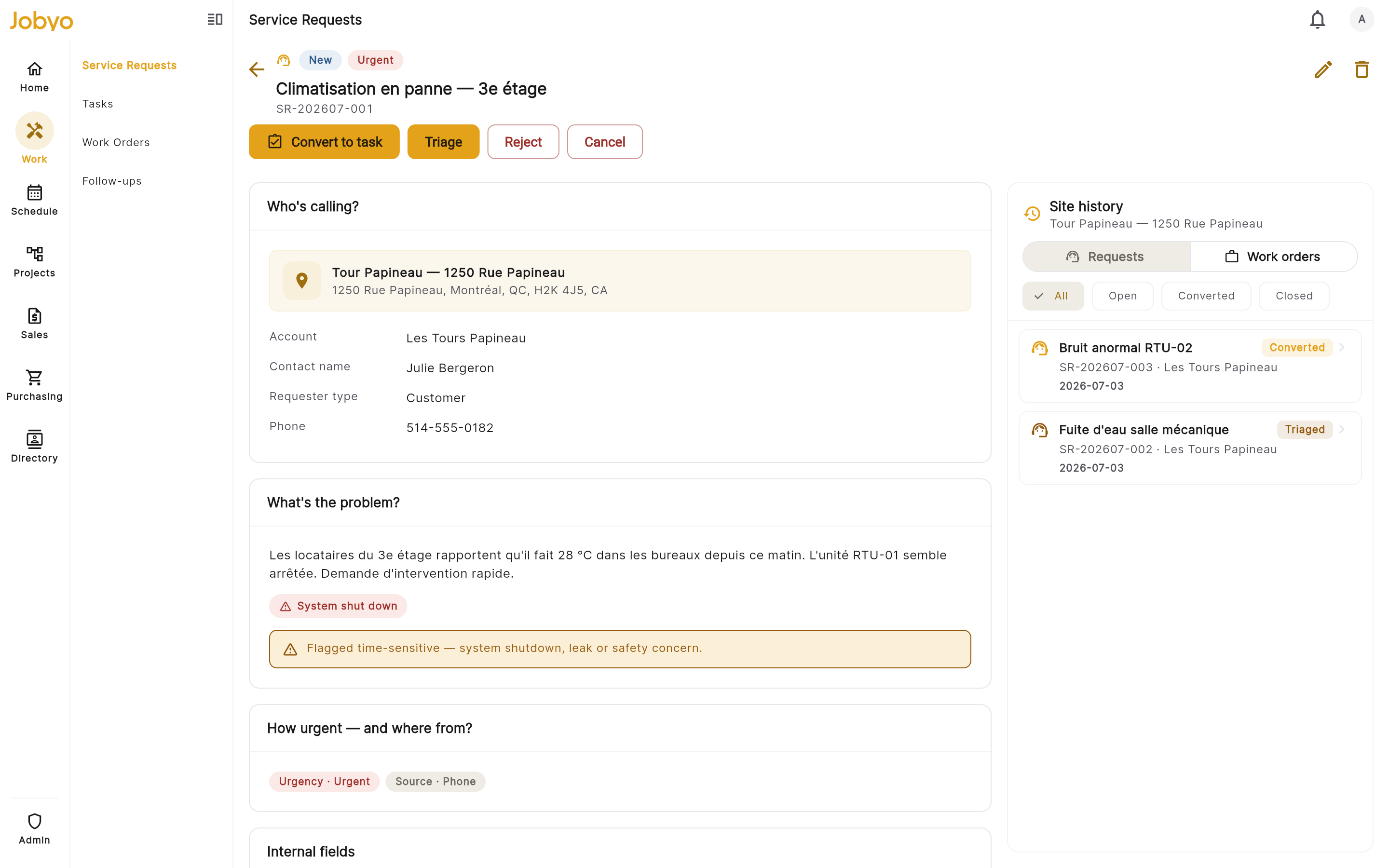
Moving a request through its lifecycle
From the request's action bar you triage it, convert it, or close the loop. Each status controls what you can do next.
Triage
When you've reviewed a New request and it's valid work that needs scheduling, triage it. The status moves to Triaged, which opens up converting, closing, rejecting, or cancelling.
Convert to a task
When you're ready to schedule the fieldwork, convert it to a task — conversion works from either New or Triaged. Jobyo creates a linked task, flips the request to Converted, and shows a task preview on the request. Converting needs both the edit service requests and create tasks permissions.
Jobyo first asks for the appointment: a date (prefilled from the request's preferred date), a Starts time (09:00 by default) and an Ends time (two hours later until you change it; an end earlier than the start rolls to the next day). Select Convert to create the task with that start and end, or No date to create it unscheduled and plan it later.
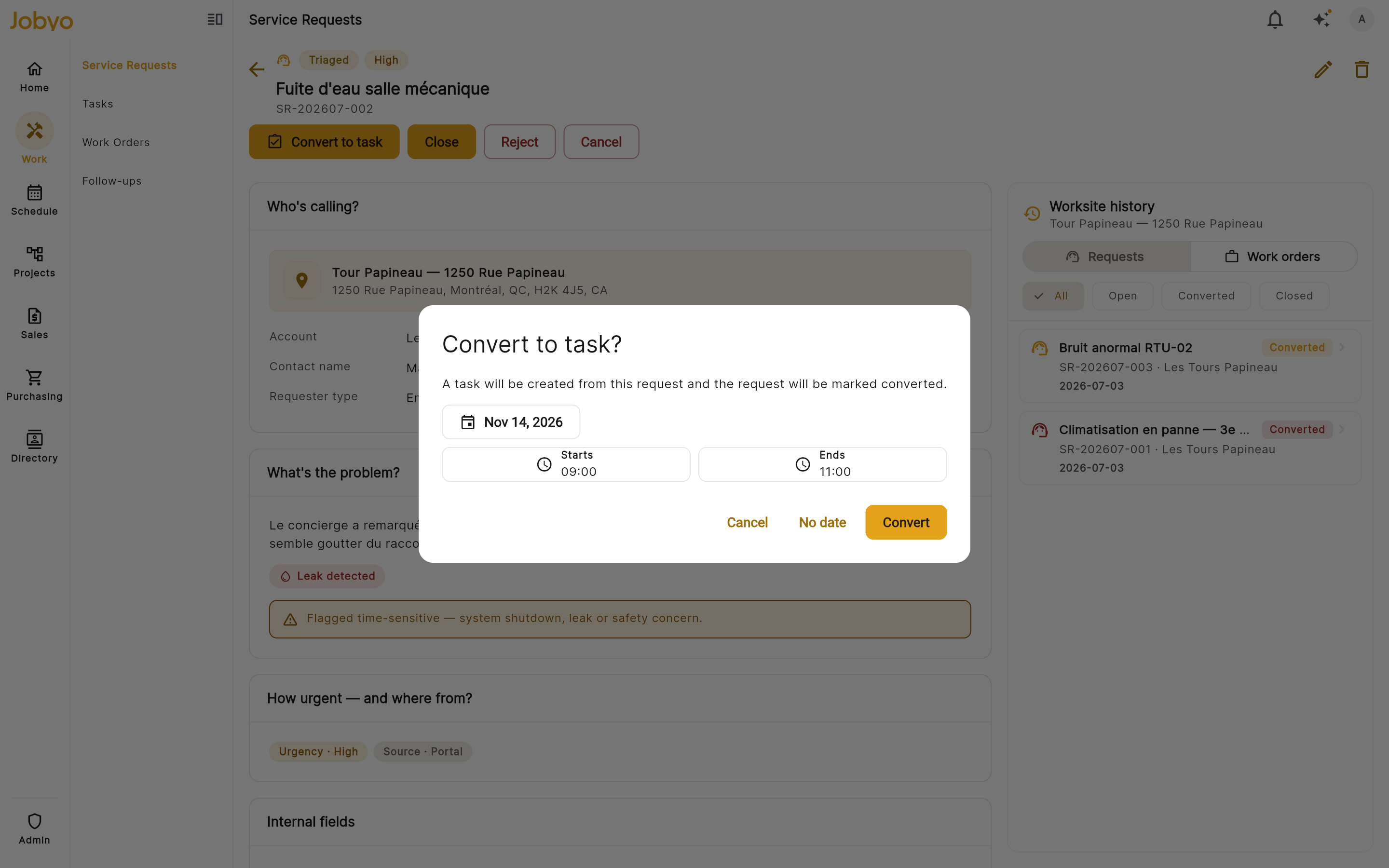
Convert to task — appointment date, start and end time Converting twice is safeIf you convert a request that's already been converted, Jobyo re-opens the existing task rather than creating a duplicate — it doesn't ask for the appointment again or change the existing task's times.
Close, reject, or cancel
Close a request that's been dealt with at the intake stage (for example, resolved over the phone). Reject one you won't action, or Cancel one logged in error — both need a reason, which is saved as an internal note. A closed request can be reopened back to Triaged if it was closed too early.
Once a request is Converted, you can't edit it or move it any further — the task carries the work from there. Rejected and cancelled requests are also final and can't be moved again.
Status reference
| Status | What it means | What you can do next |
|---|---|---|
| New | Just logged — not yet reviewed | Triage, Convert to task, Reject, Cancel |
| Triaged | Reviewed and accepted — ready to schedule | Convert to task, Close, Reject, Cancel |
| Converted | A task has been created from this request | Nothing — locked; work continues on the task |
| Closed | Resolved at intake — no fieldwork needed | Reopen (returns to Triaged) |
| Rejected | Declined — outside scope or erroneous | No further moves |
| Cancelled | Withdrawn or logged by mistake | No further moves |
Finding and editing requests
Use the search bar to find a request by its SR number, title, customer name, or site name — it searches as you type. You can also filter the list by status, customer, worksite, assignee, priority, and requested-date range, switch between card, tile, and column views, and jump to a status group using the count pills at the top.
To change details after intake, edit the request while it's still active — the customer and worksite snapshots refresh from the live records when you save. To remove one created by mistake, delete it.
If a request is linked to an active task, Jobyo blocks the delete. Close or cancel the linked task first, then delete the request.
If it doesn't work
- No new-request buttonYour role doesn't include creating service requests. An administrator can grant it under Users & roles.
- "Customer not found" / "Worksite not found"The linked record was removed. Search again, or leave the field blank and enter the details manually.
- Triage button greyed outOnly New requests can be triaged. Check the status in the header — it may already be past New.
- Can't convert to a taskThe request must be New or Triaged, and you need both the edit-service-request and create-task permissions. An administrator can grant the task permission.
- Reject / cancel won't submitA reason is required for both. Enter one in the dialog before confirming.
- "Record was updated by someone else"Two people edited the same request at once. Refresh the screen and try your change again.
- Can't edit or delete an old REQ- recordRequests created before the current version are read-only. Contact your admin if one needs changing.
Not available yet
A few things aren't part of service requests today: uploading attachments to a request, a comment thread (use internal notes instead), and creating a work order or quotation directly from a request. To reach a work order, convert the request to a task first, then create the work order from the task.