Document numbering preferences
Jobyo auto-numbers each document type from a prefix — so a new invoice becomes INV-00001. You can edit the prefix for every document type; projects also let you set a one-time starting number. Purchase orders and invoices have extra numbering options, below. The company identity that prints on invoices is set from the General category too.
What you'll need
- The Company preferences: modify permission — this is an administrator area.
- The numbering scheme you want, especially if you're migrating from another system and need to continue an existing sequence.
How numbering works
- Prefix — the letters before the number. Defaults are already set per type:
INV(invoice),WO(work order),QUO(quote),PO(purchase order),PRJ(project),GR(goods receipt),TSK(task). You can edit the prefix for every type. - Starting number (Projects) — a one-time value, honoured only before the first project is created. Once a project exists, Jobyo is already counting on its own and this field has no further effect by itself.
- Purchase orders can also number with the project or a category worked in (below), and invoices have their own start number, counter digits, and shared yearly counter (below) — these are the only other document-numbering options today.
Projects are the exception to "no effect after the fact." The moment you save a new Project starting number — even before your company's first project exists — Jobyo locks its internal counter to it. From then on you can only raise the Project starting number, never lower it. Saving the same value again is accepted and does nothing; saving a value lower than the number Jobyo would issue next is rejected (the error tells you that next number). Double-check the value before you save.
Set up document numbering
Open General
From the main menu, select Company Settings, then General, and scroll to Document numbering. Select Edit.
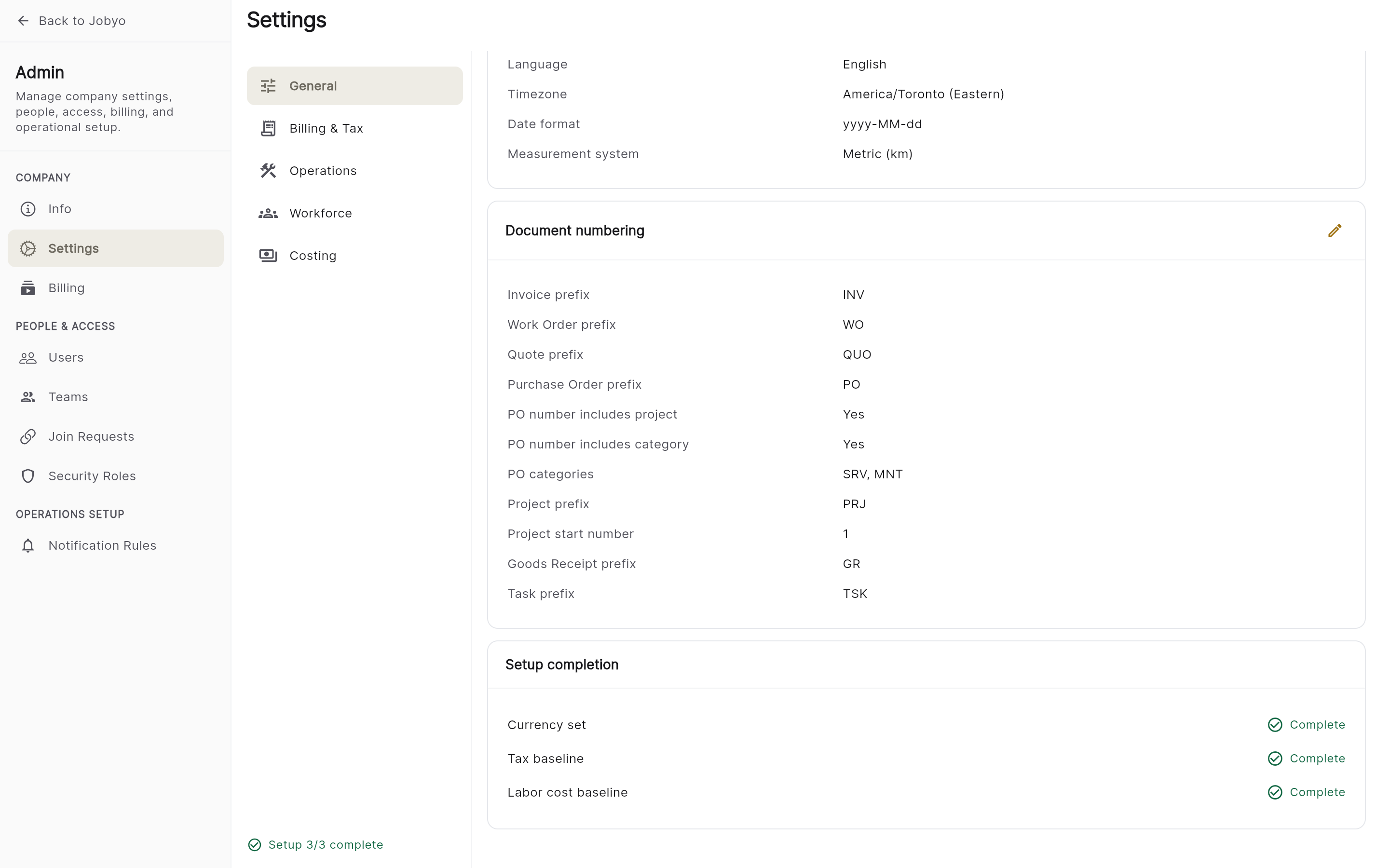
Document numbering — prefix per document type, project starting number, PO numbering toggles, and invoice numbering options Configure each document type
For each type you want to change, set the prefix. For Projects only, you can also set a starting number.
Purchase orders
Turn on PO number includes project to number a project-linked purchase order with the project's number worked in. Turn on PO number includes category to number a purchase order without a project using its category instead — when it's on, add at least one category code (and an optional label) to the list that appears.
Invoices
Turn on Invoice number includes project to number invoices against their project (off by default). An invoice linked to a project — directly, or through its work order — is numbered
<prefix>-<project number digits>-<year>-<counter>(e.g.INV-01300-2026-00001; with an empty prefix,3037-2026-10001). An invoice with no project keeps the plain<prefix>-<year>-<counter>format. Set the optional Start number — the first value the yearly counter uses (leave empty for 1) — and Counter digits (0–10, default 5) — the minimum digit width of the counter. All invoices, project-linked or not, share one counter per year, so numbers are never reused and already-issued numbers never change. The Example field previews the next invoice number live as you edit these fields, in both view and edit mode.Save
Select Save. The next document of each type uses the new format.
Set the Project starting number higher before you create your first project, so your Jobyo project numbers pick up where your old system left off and you avoid duplicates. Already-issued documents keep the numbers they were given. Outside of Projects, only the invoice Start number is similarly adjustable, and it's a yearly counter seed rather than a one-time migration value — see the Invoices step above.
An invoice gets its number at the moment it's sent, not when it's created — a new numbering setting only applies to invoices sent after you save it. QuickBooks accepts invoice numbers of up to 21 characters; if the project number is included, keep the prefix short or remove it, or a longer number won't sync. This note also shows under the Example field in the app.
Add your invoicing details
The Invoicing details section, also under General, holds the company identity that prints on invoices generated by Jobyo.
Open General → Invoicing details
In Company Settings → General, scroll to Invoicing details.
Fill in your company identity
Enter your company name, address, phone, email, and website, plus default payment terms (a number of days) and any standard invoice conditions or footer text.
Save
Select Save. These details appear on invoices generated from Jobyo.
If it doesn't work
- "Task number prefix" configuration errorThe task (TSK) prefix hasn't been set. Come back to Document numbering and confirm the task prefix is filled in.
- No General categoryYour role doesn't include the Company preferences permission. Ask an administrator.
- New project numbers collide with old onesIf a project already exists, changing the Project starting number won't fix it — the field only matters before the first project is created. Jobyo is already counting on its own; contact support if the running sequence itself looks wrong.
- "That would lower the Project starting number" (or similar) when savingProject numbering locks to whatever value you last saved and can only be raised, never lowered — even before your first project exists. Enter a value at or above the number shown in the error.
- Saving "PO number includes category" is blockedAdd at least one category code to the list, or turn the toggle back off.